
🔍 Visualize your AL objects in a tree view, filter and navigate directly in VS Code (English version)
🔍 Visualiza tus objetos AL en árbol, filtra y navega directo en VS Code
Cuando trabajas en Visual Studio Code con un workspace de múltiples carpetas y muchos archivos AL, es fácil perder la visión de conjunto: los archivos están repartidos entre varios proyectos, los nombres no siempre son suficientemente descriptivos, y no hay una forma directa de saber cuántos objetos tienes, de qué tipo son o dónde está cada uno. Para averiguarlo tienes que ir abriendo archivos uno a uno.
Es ahí donde una extensión para VS Code, AL Object Visualizer, intenta mejorar la situación: se integra en el panel Explorer, muestra todos los objetos AL clasificados por tipo en un árbol, los decora con badges Unicode y colores para identificarlos de un vistazo, y permite filtrar por texto o expresiones regulares para navegar directamente al archivo que buscas.
¿Qúe hace?
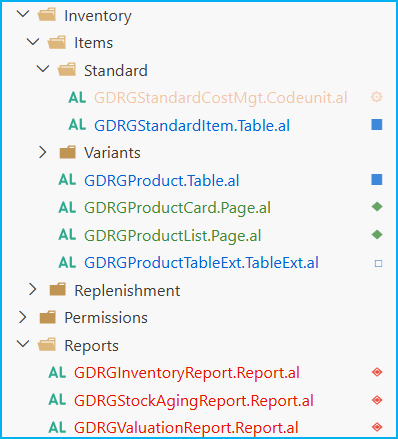
Decoraciones en el Explorer (badges y colores): Al abrir un workspace con archivos AL, la extensión detecta automáticamente el tipo de cada objeto leyendo las primeras líneas del archivo y aplica un badge Unicode y/o un color directamente en el árbol de archivos del Explorer.
Los badges y colores son totalmente configurables en settings.json. Puedes configurar solo el badge, solo el color, o ambos. Si no configuras nada para un tipo, no se aplica ninguna decoración.
"alObjectVisualizer.objectTypes": { "table": { "color": "#3B82F6", "badge": "■" }, "tableextension": { "color": "#3B82F6", "badge": "□" }, "page": { "color": "#10B981", "badge": "◆" }, "pageextension": { "color": "#10B981", "badge": "◇" }}
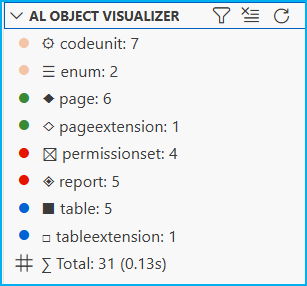
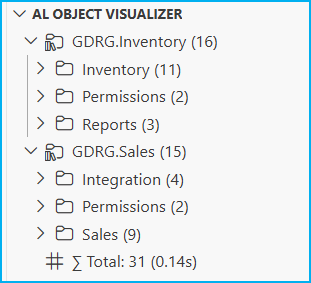
Panel de estadísticas en el Explorer: En la sección AL Object Visualizer dentro del panel Explorer aparece un árbol con todos los objetos de tu workspace agrupados por tipo. Puedes configurar cuántos niveles de carpetas quieres ver con el ajuste folderGroupingDepth (0 a 3):
"alObjectVisualizer.folderGroupingDepth": 2
Búsqueda y filtro en tiempo real (con soporte de regex): Puedes filtrar los objetos del panel escribiendo texto o expresiones regulares. Los conteos se actualizan en vivo y al hacer clic en cualquier resultado abres el archivo directamente.
¿Cómo funciona?
(1) Decoraciones en el Explorer: Al abrir el workspace, cada archivo .al muestra automáticamente su badge y color según el tipo de objeto detectado.
(2) Panel de objetos agrupado: En la sección AL Object Visualizer del Explorer aparece el árbol completo de objetos clasificados por tipo. Puedes ajustar el nivel de agrupación de 0 (vista plana por tipo, ideal para un inventario rápido) hasta 3 (hasta el tercer nivel de subcarpeta, para proyectos con estructura de carpetas muy detallada).
(3) Filtro por texto: Escribiendo Mgt en la barra de filtro del panel, solo aparecen los objetos cuyo nombre, nombre de archivo o ID contiene «Mgt»: GDRGSalesPostMgt, GDRGSyncMgt, GDRGWebhookMgt, etc. Los conteos del árbol se actualizan en tiempo real.
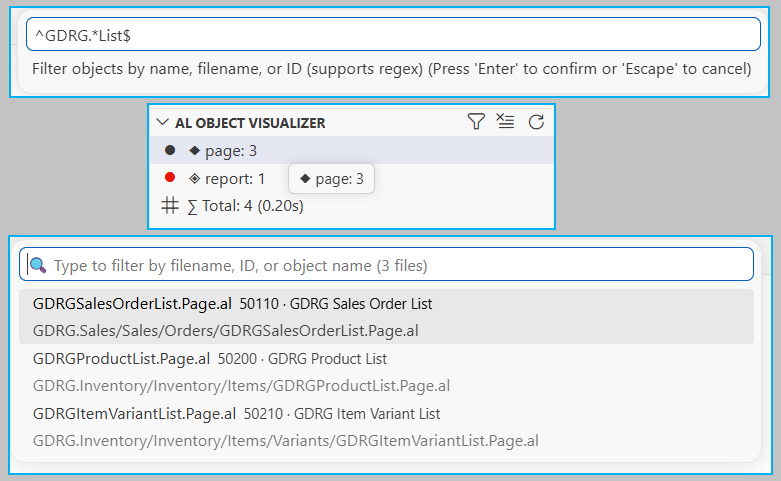
(4) Filtro regex y selección rápida: Escribiendo ^GDRG.*List$ solo aparecen las páginas de tipo List. Al hacer clic en cualquier fila de tipo en el árbol, se abre un «Seleccionador rápido» con todos los archivos de ese tipo: cada entrada muestra el nombre del archivo, el ID del objeto y su nombre. Selecciona uno y se abre directamente en el editor.
(5) Actualización automática: El panel se actualiza automáticamente al guardar cualquier archivo .al o al cambiar la configuración de la extensión. El botón Refresh y el comando AL Object Visualizer: Refresh están disponibles para forzar un rescaneo completo.
Si alguna de estas opciones te resulta útil para tu flujo de trabajo diario con Business Central, la extensión está disponible en el Marketplace de VS Code: AL Object Visualizer – Visual Studio Marketplace
Espero que esta extensión te ayude.
🔍 Visualize your AL objects in a tree view, filter and navigate directly in VS Code
When working in Visual Studio Code with a multi-folder workspace and numerous AL files, it’s easy to lose sight of the big picture: files are scattered across multiple projects, names aren’t always descriptive enough, and there’s no direct way to know how many objects you have, what type they are, or where each one is located. To find out, you have to open files one by one.
That’s where an extension for VS Code, AL Object Visualizer, tries to improve the situation: it integrates into the Explorer panel, displays all AL objects classified by type in a tree, decorates them with Unicode badges and colors to identify them at a glance, and allows you to filter by text or regular expressions to navigate directly to the file you’re looking for.
What does the extension do?
Decorations in Explorer (badges and colors): When opening a workspace with AL files, the extension automatically detects the type of each object by reading the first lines of the file and applies a Unicode badge and/or color directly to the Explorer file tree.
Badges and colors are fully configurable in settings.json. You can configure just the badge, just the color, or both. If you don’t configure anything for a type, no decoration will be applied.
"alObjectVisualizer.objectTypes": { "table": { "color": "#3B82F6", "badge": "■" }, "tableextension": { "color": "#3B82F6", "badge": "□" }, "page": { "color": "#10B981", "badge": "◆" }, "pageextension": { "color": "#10B981", "badge": "◇" }}
Statistics panel in Explorer: In the AL Object Visualizer section within the Explorer panel, a tree appears with all the objects in your workspace grouped by type. You can configure how many folder levels you want to see with the folderGroupingDepth setting (0 to 3):
"alObjectVisualizer.folderGroupingDepth": 2
Real-time search and filter (with regex support): You can filter the panel’s objects by typing text or regular expressions. Counts are updated live, and clicking on any result opens the file directly.
How does it work?
(1) Decorations in the Explorer: When opening the workspace, each .al file automatically displays its badge and color according to the type of object detected.
(2) Grouped Object Panel: In the AL Object Visualizer section of the Explorer, the complete tree of objects classified by type is displayed. You can adjust the grouping level from 0 (flat view by type, ideal for a quick inventory) to 3 (down to the third subfolder level, for projects with a very detailed folder structure).
(3) Filter by text: By typing «Mgt» in the panel’s filter bar, only objects whose name, filename, or ID contains «Mgt» appear: GDRGSalesPostMgt, GDRGSyncMgt, GDRGWebhookMgt, etc. The tree counts are updated in real time.
(4) Regex filter and Quick Pick: Typing ^GDRG.*List$ displays only List type pages. Clicking on any row of that type in the tree opens a «Quick Pick» with all files of that type: each entry shows the filename, object ID, and file name. Select one, and it opens directly in the editor.
(9) Automatic refresh: The panel updates automatically when you save any .al file or change the extension settings. The Refresh button and the AL Object Visualizer: Refresh command are available to force a full rescan.
If any of these options are useful for your daily workflow with Business Central, the extension is available in the VS Code Marketplace: AL Object Visualizer – Visual Studio Marketplace
I hope this extension helps you.
Más información / More information:




Deja un comentario