
How to compare technical changes between Business Central versions? (English version)
¿Cómo comparar cambios técnicos entre las versiones de Business Central?
Muchas veces se desea conocer el detalle de los cambios técnicos a nivel de objetos en cada nueva versión liberada de Business Central, ya sea para identificar de mejor manera la afectación que ha tenido los distintos módulos que usan nuestros clientes, para actualizar algunos permisos hacia nuevos objetos, revisar la solución de un bug u otras consideraciones.
Antes de alguna manera era más sencillo, con cada paquete de actualización (CU) se entregaba un listado de objetos que se modificaba, y adicionalmente podrías obtener también el detalle exacto de los mismos. Por ejemplo el CU 51 de NAV 2018 nos indica lo siguiente:

Con relación a las versiones de BC la información que podemos obtener del detalle de los diferentes paquetes de actualización (CU) es a genérico.

Una de las maneras que he podido encontrar es comparando las carpetas con los objetos descargados utilizando una herramienta de comparación a nivel de texto, como el Beyond Compare: Scooter Software | Home of Beyond Compare.
Para esto será necesario realizar lo siguiente:
- Descargar los símbolos desde VSC, nos conectamos a un ambiente Business Central, presionamos F1 para ir a la lista de comando y seleccionamos «AL: Download Symbols», posteriormente se descargarán en la siguiente carpeta «.alpackages»
- El proceso de descarga símbolos, nos descarga los siguientes archivos, seleccionaremos el de Base.
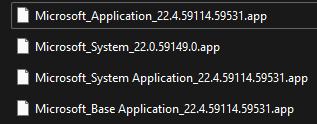
- Debemos contar con el mismo tipo de archivo en las versiones que deseamos comparar. En el ejemplo tenemos la versión 22.3 y 22.4 de la aplicación Base.
- Descomprimimos los archivos .app y tendremos el contenido en sus carpetas correspondientes.

- Utilizamos el aplicativo de comparación y seleccionamos la comparación de carpetas.

- Seleccionamos las carpetas y le damos a la opción de comparar contenido. Y veremos el resultado de las diferencias en un color rojo.
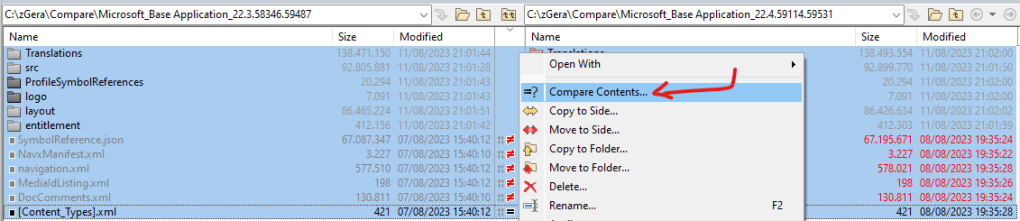

- Podemos aplicar la opción de ver solo las diferencias y tendremos los objetos modificados, y al darle clic a cualquier objeto podríamos ver el contenido y las diferencias.


- Podemos afinar la búsqueda y filtramos por solamente las tablas o también solo ver los objetos nuevos.


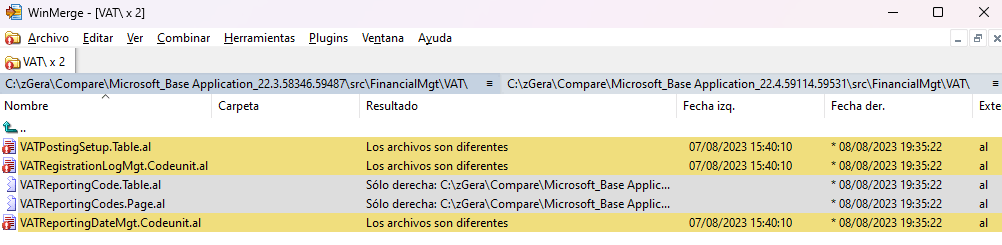
Resultado similar he conseguido con otro comparador como el WinMerge.
Existe otra opción mucho mejor y es a través de la solución denominada: MSDyn365BC.Code.History desarrollada por Stefan Maron. Aquí el detalle de la solución:
- MSDyn365BC.Code.History | Stefan Maron blog
- MSDyn365BC.Code.History got a few updates! | Stefan Maron blog
- Changes in MSDyn365BC.Code.History | Stefan Maron blog
Podemos ver la solución en acción en el siguiente video:
Una vez clonada la solución, puedes ver la infraestructura de la misma, en la cual se cuenta con:
- Diferentes espacios de trabajo (WorkSpace) organizando el código base, el de pruebas, el sistema.
- Cada localización está desplegada en una rama.
- Cada versión de cada localización se encuentra en un Commit.
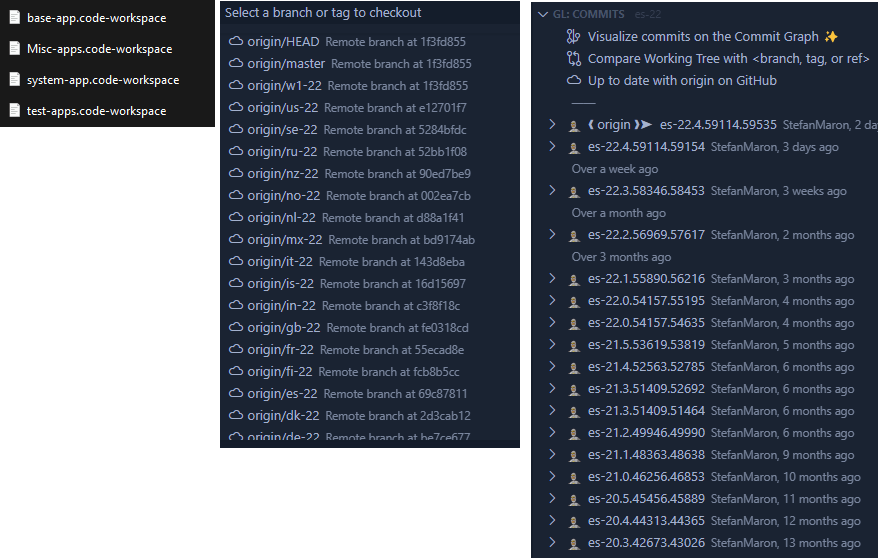
Esta organización nos permite tener muchas facilidades, mucha flexibilidad de revisión y comparación con mucho nivel de profundidad.
Por ejemplo para comparar dos versiones menores, haríamos lo siguiente: seleccionamos una versión a comparar.
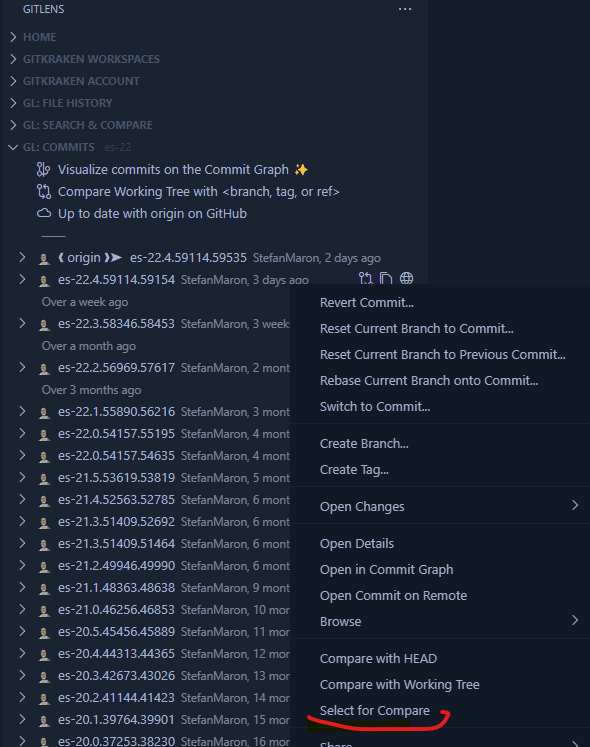
Y luego elegimos la siguiente,

Y podríamos revisar los objetos nuevos y modificados.

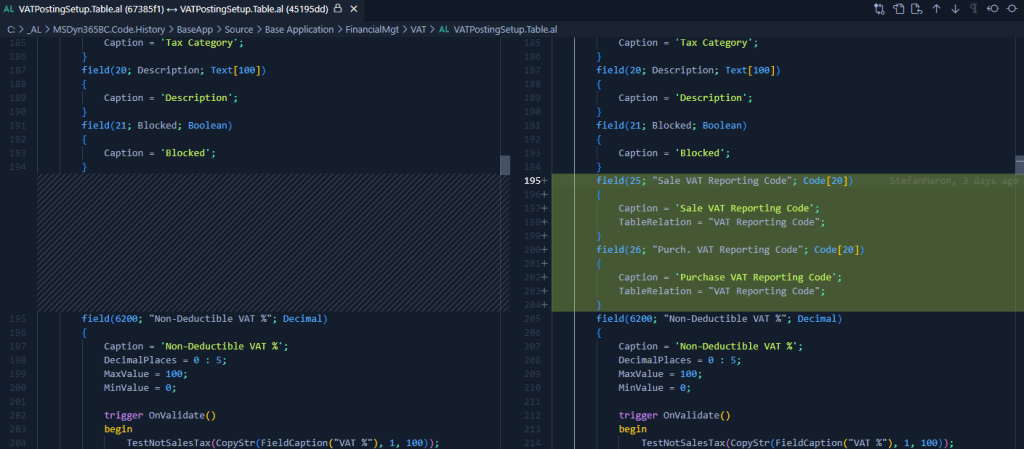
También podríamos seleccionar un objeto y ver sus cambios en las diferentes versiones que se han ido liberando. Como por ejemplo veríamos que en el objeto «Purchase Line Archive» en la versión 22.3 se añadieron campos nuevos relacionados al IVA No deducible.


Y esto lo podríamos corroborar con el detalle que se nos entrega de cada paquete de actualización, por ejemplo Update 22.3 for Microsoft Dynamics 365 Business Central (on-premises) 2023 Release Wave 1 (Application Build 22.3.58453, Platform Build 22.0.58423) – Microsoft Support

Es decir podemos explotar todas las funcionalidades y posibilidades que nos permite Git en Visual Studio Code.
Utilizando alguna de estas opciones puedes controlar, seguir y revisar los cambios técnicos en cada versión de Business Central, espero que te haya ayudado.
How to compare technical changes between Business Central versions?
Many times you want to know the details of the technical changes at object level in each new version released of Business Central, either to better identify the impact on the different modules used by our customers, to update some permissions to new objects, to review the solution of a bug or other considerations.
Before it was somehow simpler, with each cumulative update (CU) was delivered a list of objects that were modified, and additionally you could also get the exact detail of them. For example the CU 51 of NAV 2018 show us the following:
Regarding the Busines Central versions, the information we can obtain from the detail of the different cumulative update (CU) is generic.
One of the ways I have been able to find is to compare the folders with the downloaded objects using a text-level comparison tool, such as Scooter Software | Home of Beyond Compare.
For this it will be necessary to do the following:
- Download the symbols from VSC, connect to a Business Central environment, press F1 to go to the command pallete and select «AL: Download Symbols», then it will be downloaded to the following folder «.alpackages».
- The symbols download process downloads the following files, we will select the Base file.
- We must have the same file type in the versions we want to compare. In the example we have version 22.3 and 22.4 of the Base application.
- We unzip the .app files and we will have the content in their corresponding folders.
- We use the comparison application and select the folder comparison.
- Select the folders and click on the option to compare contents. And we will see the result of the differences in a red color.
- We can apply the option to see only the differences and we will have the modified objects, and by clicking on any object we could see the content and the differences.
- We can refine the search and filter by only the tables or only see the new objects.
I have achieved similar results with another comparator such as WinMerge.
There is another much better option and it is through the solution called: MSDyn365BC.Code.History developed by Stefan Maron. Here is the detail of the solution:
- MSDyn365BC.Code.History | Stefan Maron blog
- MSDyn365BC.Code.History got a few updates! | Stefan Maron blog
- Changes in MSDyn365BC.Code.History | Stefan Maron blog
We can see the solution in action in the following video:
Once the solution is cloned, you can see the infrastructure of the same, in which there are:
- Different workspaces organizing the code base, the testing, the system.
- Each location is deployed in a branch.
- Each version of each localization is a Commit.
This organization allows us to have a lot of facilities, a lot of flexibility of review and comparison with a lot of depth.
For example, to compare two minor versions, we would do the following: we select a version to compare.
And then we choose the next one.
And we could check the new and modified objects.
We could also select an object and see its changes in the different versions that have been released. For example, we would see that in the object «Purchase Line Archive» in version 22.3 new fields related to Non-deductible VAT were added.
And we could corroborate this with the detail that is given to us in each update package, for example Update 22.3 for Microsoft Dynamics 365 Business Central (on-premises) 2023 Release Wave 1 (Application Build 22.3.58453, Platform Build 22.0.58423) – Microsoft Support
In other words, we can exploit all the features and possibilities that Git allows us in Visual Studio Code.
Using any of these options you can control, track and review the technical changes in each version of Business Central, I hope it has helped you.
Más información:




 Gerardo Rentería Blog
Replica a Unveiling the AI’s Power 🤖 to analyze differences between BC versions. 💡 – Gerardo Rentería Blog Cancelar la respuesta