⚡ «Compacting conversation…» small message, big impact on your session 🔄(English version)
⚡ «Compactando la conversación…» un pequeño mensaje, un gran impacto en tu sesión 🔄
Si estás en medio de una sesión larga con el agente mientras desarrollas en VSCode y tienes archivos editados, has ejecutado varias herramientas y con varias rondas de prompts, y de repente aparece esto:
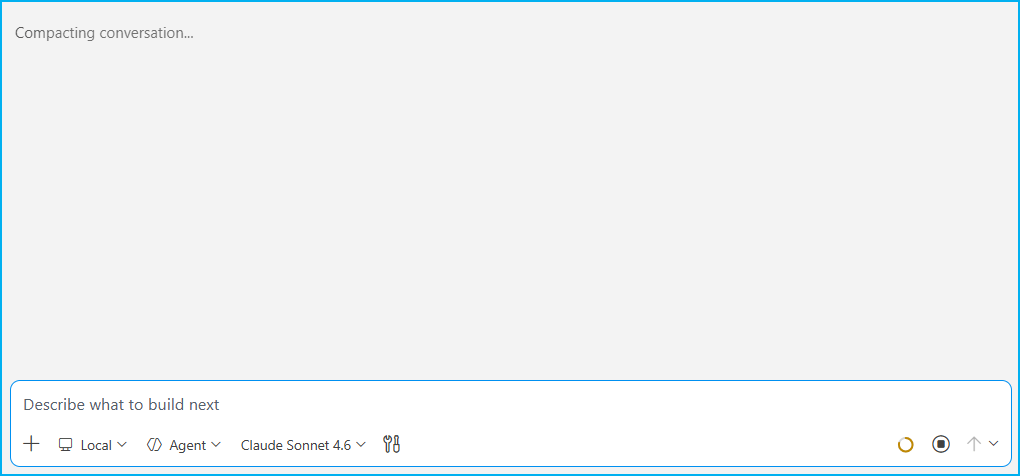
¿Perdiste el contexto? ¿Tienes que empezar de cero? ¿Qué acaba de pasar? Te lo digo.
La ventana de contexto es finita, por lo que, a medida que tu sesión crece con mensajes, con resultados de herramientas e instrucciones, el espacio se va llenando. Cuando va llegando al límite, VSCode actúa. Luego de ese mensaje, sigues en la misma sesión, sin interrupciones y de manera transparente.
VSCode tiene un control visual en el campo de chat que muestra cuánto de la ventana de contexto está en uso. Por lo que, cuando usas muchas herramientas agenticas, verás que el contexto se llena considerablemente más rápido que en un chat simple. Además la documentación oficial señala que el tamaño total de la ventana no es un número fijo, depende del modelo que tengas seleccionado.
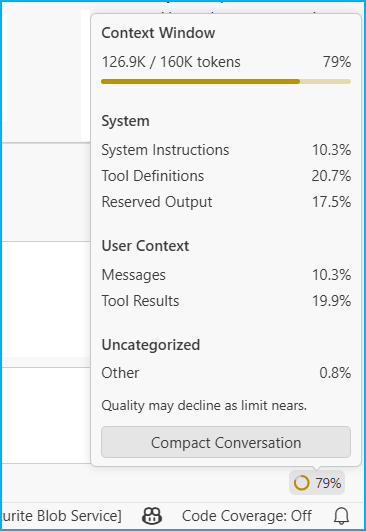
El mensaje parece inofensivo y tu sesión continuará sin interrupciones, pero el propio panel nos avisa: «Quality may decline as limit nears». La documentación menciona iniciar una nueva sesión como alternativa a la compactación, lo que sugiere que un resumen no preservaría todo al nivel del original. Por eso existe el control manual: /compact con instrucciones opcionales, para que guíes qué se mantiene con prioridad.
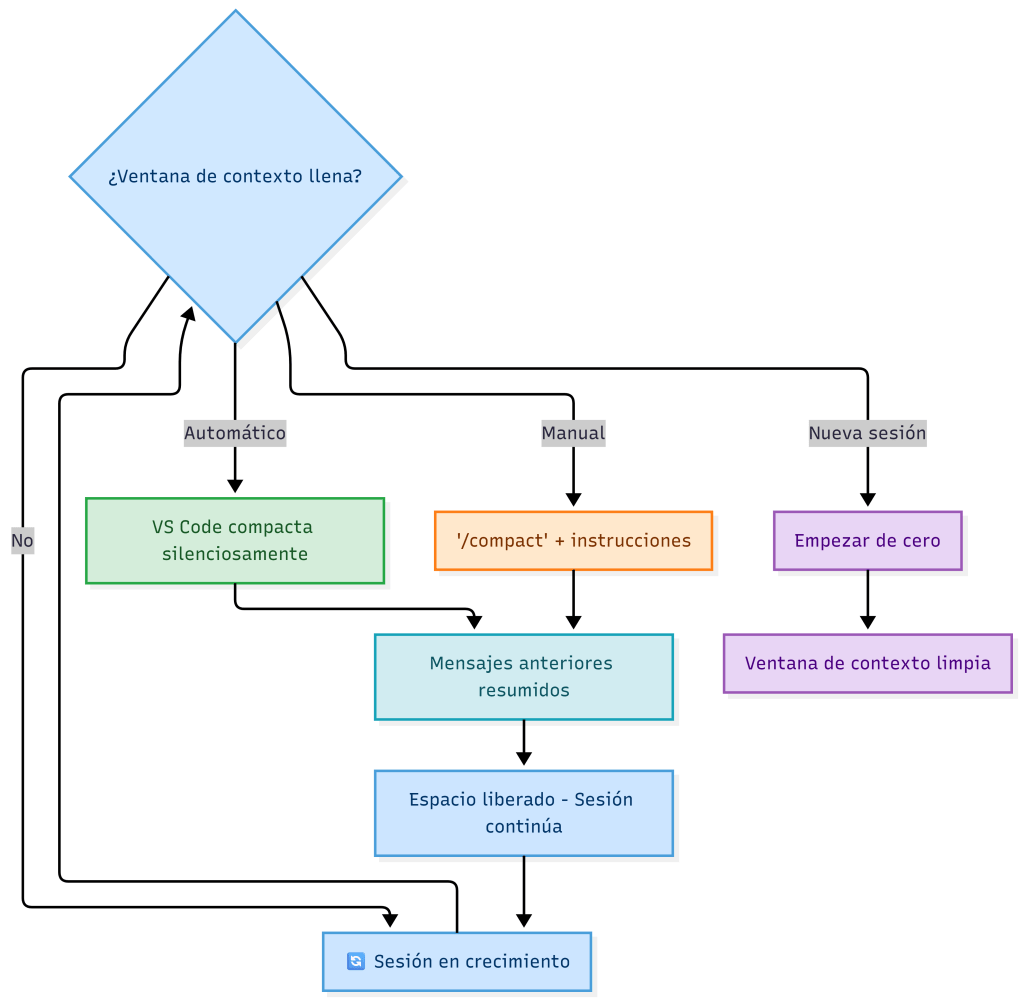
En la práctica, VSCode te da tres opciones para gestionar esto:
- Automático: VS Code lo hace en silencio cuando el indicador llega al límite. No necesitas hacer nada.
- Manual con /compact: Puedes activarlo tú en cualquier momento y guiar el resumen con instrucciones adicionales: /compact focus on the architecture decisions. Así el resumen preserva lo que tú consideras importante, no solo lo que el modelo decide.
- Nueva sesión: Si quieres empezar desde cero. El contexto no viaja entre sesiones.
Ahora ya sabes cómo el modelo gestiona sus límites y sabes también cómo no dejarlo todo en manos del piloto automático.
Espero que esta información te ayude.
⚡ «Compacting conversation…» small message, big impact on your session 🔄
You’re in the middle of a long agent session while developing in VSCode and you have files edited, multiple tools executed, several rounds of prompts, and suddenly this appears:
Did you lose context? Do you have to start over? What just happened? Let me explain.
The context window is finite. As your session grows with messages, tool results, and instructions, the available space fills up. When it starts reaching the limit, VSCode acts. After that message, you stay in the same session, uninterrupted and transparently.
VSCode has a visual control in the chat input that shows how much of the context window is in use. When you’re running many agentic tools, you’ll notice the context fills up considerably faster than in a simple chat. The official documentation also points out that the total window size is not a fixed number, it depends on the model you have selected.
The message looks harmless and your session will continue without interruption, but the panel itself warns you: «Quality may decline as limit nears». The documentation also mentions starting a new session as an alternative to compaction, which suggests that a summary doesn’t preserve everything at the level of the original. That’s why the manual control exists: /compact with optional instructions, so you guide what gets prioritized.
In practice, VSCode gives you three options to manage this:
- Automatic: VS Code does it silently when the indicator reaches the limit. You don’t need to do anything.
- Manual with /compact: You can trigger it yourself at any time and guide the summary with additional instructions: /compact focus on the architecture decisions. That way the summary preserves what you consider important, not just what the model decides.
- New session: If you want to start from scratch. Context does not carry over between sessions.
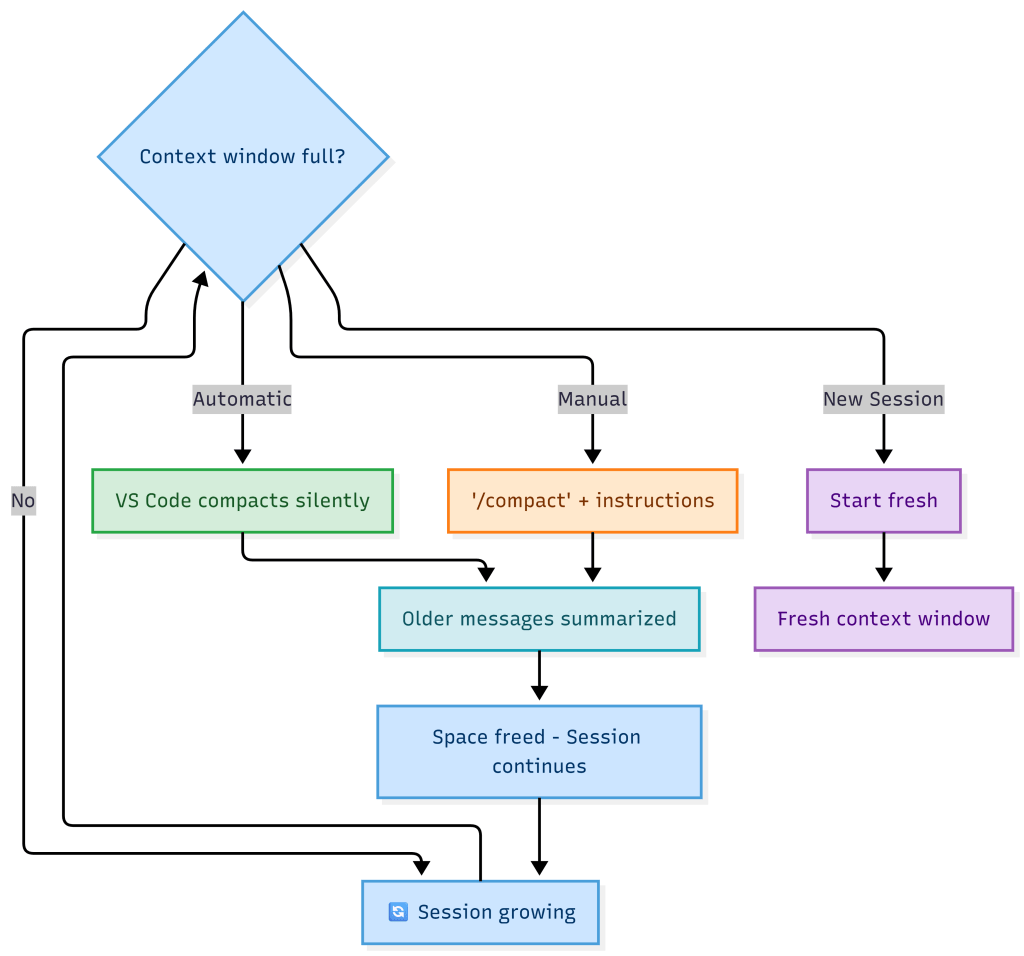
Now you know how the model manages its limits and how not to leave it all on autopilot.
I hope this information helps you.
Más información / More information:


 Gerardo Rentería Blog
Deja un comentario