⚙️ GitHub Copilot: Workspace-Level Control Over AI Context 🔄 (English version)
⚙️ GitHub Copilot: Control del Contexto de IA por Workspace 🔄
¿Sabías que puedes habilitar y deshabilitar qué contexto de IA tiene GitHub Copilot disponible, según el workspace que tengas abierto?
Tus instrucciones personales no deberían mezclarse con las de un cliente o de tu empresa. Las reglas de estilo del cliente A probablemente no deberían influir cuando trabajas para el cliente B.
Hoy día nos encontramos con una explosión de instrucciones, prompts, agentes y skills disponibles: especialistas de seguridad, arquitectos de solución, revisores de código, generadores de tests, etc. Me encuentro con sets completos listos para usar muy interesantes. Está genial tenerlos, pero sin control se convierte en ruido.
Una alternativa de solución: carpetas + un switch: Organiza tu contexto en carpetas. Una por cliente, por proyecto, por origen,… como quieras. Luego activas o desactivas cada carpeta desde settings.json del workspace con true o false.
"chat.instructionsFilesLocations": { ".github/instructions/al-client-a-spanish": true, ".github/instructions/al-client-b-english": false, ".github/instructions/al-personal": true, ".github/instructions/al-community": true},"chat.agentFilesLocations": { ".github/agents/al-dev": true, ".github/agents/ts-dev": false},Y el mismo patrón aplica a todo el contexto de IA:
{ "chat.instructionsFilesLocations": { ".github/instructions/client-a": true }, .... "chat.promptFilesLocations": { ".github/prompts/client-a": true },...... "chat.agentFilesLocations": { ".github/agents/reviewer": true },...... "chat.agentSkillsLocations": { ".github/skills/al-dev": true },......}Cambias de proyecto → ajustas el settings.json → Copilot opera en un contexto completamente distinto y limpio.
Un ejemplo de organización que me ha funcionado:
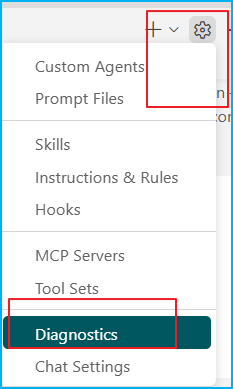
.github/ instructions/ al-client-a-spanish/ ← company A rules e.g.: Code and comments in Spanish al-client-b-english/ ← company B rules e.g.: Code and comments in English al-personal/ ← my own preferences al-community/ prompts/ client-a/ client-b/ agents/ al-dev/ ← agent specialized in AL / Business Central ts-dev/ ← agent specialized in TypeScript skills/ al-expert/ ← AL specialist skill security-review/ ← security skill, only when neededPara saber que Copilot está usando el contexto correcto, en el Chat view, haz clic en el icono ⚙️ (Configure Chat) → Diagnostics. Verás exactamente qué instructions, prompts, agents y skills cargó Copilot en esa sesión.
Pienso yo que darle a Copilot el contexto equivocado es casi peor que no darle ninguno.
Espero que esta información te ayude.
⚙️ GitHub Copilot: Workspace-Level Control Over AI Context 🔄
Did you know that you can enable and disable which AI context GitHub Copilot has available, depending on the workspace you have open?
Your personal instructions shouldn’t be mixed with those of a client or your company. Client A’s style guidelines probably shouldn’t influence your work for client B.
Today we’re faced with an explosion of available instructions, prompts, agents, and skills: security specialists, solution architects, code reviewers, test generators, and so on. I’ve come across some very interesting, ready-to-use complete sets. It’s great to have them, but without control, they just become noise.
An alternative solution: folders + a switch: Organize your context into folders. One per client, per project, per source, etc., however you like. Then, activate or deactivate each folder from the workspace’s settings.json file using true or false.
"chat.instructionsFilesLocations": { ".github/instructions/al-client-a-spanish": true, ".github/instructions/al-client-b-english": false, ".github/instructions/al-personal": true, ".github/instructions/al-community": true},"chat.agentFilesLocations": { ".github/agents/al-dev": true, ".github/agents/ts-dev": false},And the same pattern applies to the entire AI context:
{ "chat.instructionsFilesLocations": { ".github/instructions/client-a": true }, .... "chat.promptFilesLocations": { ".github/prompts/client-a": true },...... "chat.agentFilesLocations": { ".github/agents/reviewer": true },...... "chat.agentSkillsLocations": { ".github/skills/al-dev": true },......}You switch projects → you adjust the settings.json → Copilot operates in a completely different and clean context.
An example of organization that has worked for me:
.github/ instructions/ al-client-a-spanish/ ← company A rules e.g.: Code and comments in Spanish al-client-b-english/ ← company B rules e.g.: Code and comments in English al-personal/ ← my own preferences al-community/ prompts/ client-a/ client-b/ agents/ al-dev/ ← agent specialized in AL / Business Central ts-dev/ ← agent specialized in TypeScript skills/ al-expert/ ← AL specialist skill security-review/ ← security skill, only when neededTo verify that Copilot is using the correct context, in the Chat view, click the ⚙️ icon (Configure Chat) → Diagnostics. You will see exactly which instructions, prompts, agents, and skills Copilot loaded in that session.
I think that giving Copilot the wrong context is almost worse than giving it none at all.
I hope this information helps you.
Más información / More information:


 Gerardo Rentería Blog
Deja un comentario