
🔧BC Launch Profile: VS Code Extension for Managing Business Central Environments 🔄 (English version)
🔧BC Launch Profile: Extensión VS Code para Gestionar Ambientes de Business Central🔄
Si bien es cierto que Business Central ya ofrece formas de generar launch.json (Generate launch configuration files directly from the web client) que es excelente para el setup inicial o para depuraciones, pero como desarrollador trabajando con múltiples clientes, un problema surge después:
- Cliente A tiene los ambientes de UAT, QA y Development
- Cliente B tiene los mismos 3 ambientes
- Cliente C, D, E, F…..
Cada vez que necesitas cambiar de ambiente:
- Abres
launch.json. - Buscas la configuración correcta.
- Editas manualmente
environmentType,environmentName,tenant.
Es por eso que, la idea de la publicación es contar con una extensión en VSC que nos permita optimizar esta configuración, centralizando todas tus configuraciones y permitiéndote cambiar entre ellas rápidamente. La extensión nos permite:
- 🔄 Cambio instantáneo entre ambientes.
- 📋 Gestión centralizada en un solo archivo.
- 👥 JSON compartible entre todo el equipo.
- 🔍 Búsqueda por cliente, ambiente o tenant.
- 📑 Duplicar configuraciones con un clic.
Puedes instalar la extensión desde VS Code Marketplace: BC Launch Profile – Visual Studio Marketplace, y en la raíz de tu workspace AL, crea «bclaunchprofiles.json» con la siguiente estructura:
{ "profiles": [ { "name": "TechCorp - Production", "environmentType": "Sandbox", "environmentName": "TECHCORP-PROD", "tenant": "a1b2c3d4-1111-2222-3333-444455556666" }, { "name": "TechCorp - QA", "environmentType": "Sandbox", "environmentName": "TECHCORP-QA", "tenant": "a1b2c3d4-1111-2222-3333-444455556666" }, { "name": "RetailMax - Production", "environmentType": "Sandbox", "environmentName": "RETAILMAX-PROD", "tenant": "b2c3d4e5-2222-3333-4444-555566667777" } ]}
El archivo bclaunchprofiles.json puede (y debe) ser:
- ✅ Versionado en Git – Commitéalo en tu repo.
- ✅ Compartido en Teams/SharePoint – Archivo centralizado para todo el equipo.
La idea principal es que todo el equipo tenga acceso instantáneo a todas las configuraciones de clientes sin tener que preguntarse «¿cuál es el tenant y los ambientes de tipo sandbox del Cliente X?».
¿Cómo funciona?
- Opción A – Actualizar configuración existente
- Abre
launch.json. - Pon el cursor en la configuración a actualizar.
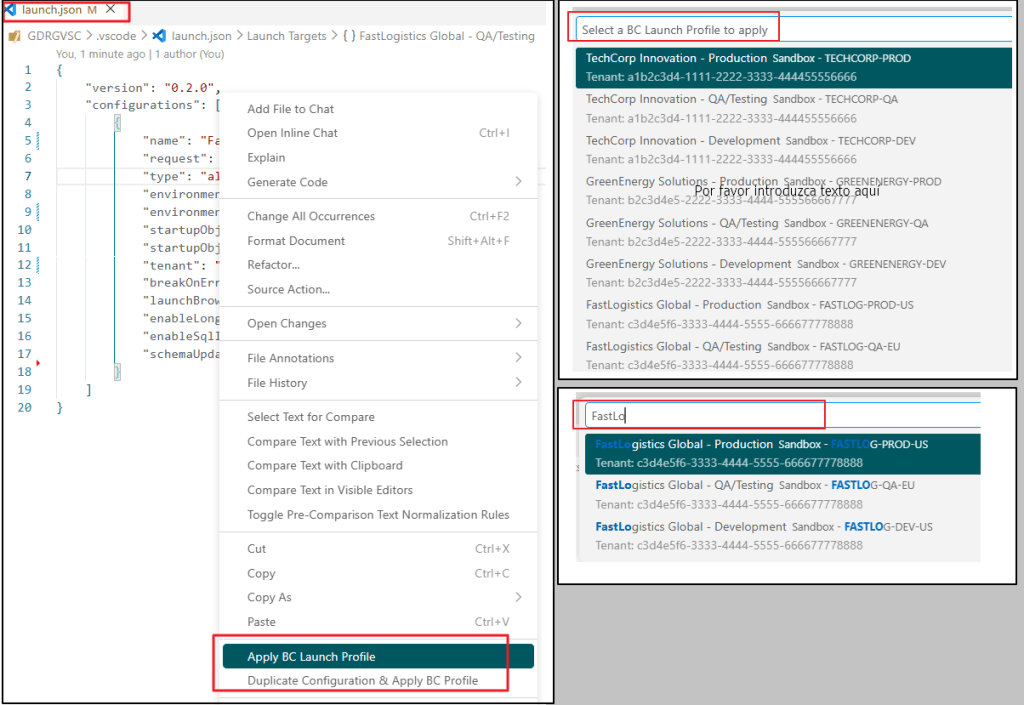
- Clic derecho → «Apply BC Launch Profile».
- Selecciona el ambiente → Listo.
- Resultado: La configuración actual se actualiza con los valores del perfil seleccionado (
name,environmentType,environmentName,tenant).
- Abre
- Opción B – Duplicar y aplicar
- Abre
launch.json. - Pon el cursor en la configuración base.
- Clic derecho → «Duplicate Configuration & Apply BC Profile».
- Selecciona el perfil → Se crea una copia nueva con ese ambiente.
- Resultado: Se crea una nueva configuración justo debajo de la actual, con todos los valores de la original pero aplicando el perfil seleccionado. Útil para crear múltiples configuraciones rápidamente.
- Abre
Si trabajas con varios clientes y ambientes, espero que esta extensión te ayude a mitigar la fricción de editar launch.json manualmente cada vez que cambias de contexto.
Espero que esta extensión te ayude en tu trabajo diario con Visual Studio Code.
🔧BC Launch Profile: VS Code Extension for Managing Business Central Environments 🔄
While it is true that Business Central already offers ways to generate launch.json (Generate launch configuration files directly from the web client) which is excellent for initial setup or debugging, but as a developer working with multiple clients, a problem arises later:
- Client A has the UAT, QA, and Development environments.
- Client B has the same 3 environments.
- Clients C, D, E, F….
Whenever you need to change sandbox environments:
- Open launch.json.
- Find the correct configuration.
- Manually edit environmentType, environmentName, and tenant.
That’s why the idea behind this post is to provide a VSC extension that allows us to optimize this configuration, centralizing all your settings and letting you switch between them quickly. The extension allows us to:
- 🔄 Instant environment switching.
- 📋 Centralized management in a single file.
- 👥 Shareable JSON across the entire team.
- 🔍 Search by client, environment, or tenant.
- 📑 Duplicate configurations with one click.
You can install the extension from the VS Code Marketplace: BC Launch Profile – Visual Studio Marketplace, and in the root of your AL workspace, create «bclaunchprofiles.json» with the following structure:
{ "profiles": [ { "name": "TechCorp - Production", "environmentType": "Sandbox", "environmentName": "TECHCORP-PROD", "tenant": "a1b2c3d4-1111-2222-3333-444455556666" }, { "name": "TechCorp - QA", "environmentType": "Sandbox", "environmentName": "TECHCORP-QA", "tenant": "a1b2c3d4-1111-2222-3333-444455556666" }, { "name": "RetailMax - Production", "environmentType": "Sandbox", "environmentName": "RETAILMAX-PROD", "tenant": "b2c3d4e5-2222-3333-4444-555566667777" } ]}
The bclaunchprofiles.json file can (and should) be:
- ✅ Versioned in Git – Commit it to your repo.
- ✅ Shared in Teams/SharePoint – Centralized file for the entire team.
The main idea is that the entire team has instant access to all client configurations without having to wonder, «What is the tenant and sandbox environments of Client X?»
How does it work?
- Option A – Update existing settings
- Open launch.json.
- Place your cursor over the configuration you want to update.
- Right-click → «Apply BC Launch Profile».
- Select the environment → Done.
- Result: The current configuration is updated with the values from the selected profile (name, environmentType, environmentName, tenant).
- Option B – Duplicate and apply
- Open launch.json.
- Place your cursor over the base configuration.
- Right-click → «Duplicate Configuration & Apply BC Profile».
- Select the profile → A new copy is created with that environment.
- Result: A new configuration is created directly below the existing one, with all the values of the original but applying the selected profile. Useful for quickly creating multiple configurations.
If you work with multiple clients and environments, I hope this extension helps you mitigate the friction of manually editing launch.json every time you change context.
I hope this extension helps you in your daily work with Visual Studio Code.
Más información / More information:


 Gerardo Rentería Blog
Deja un comentario