
🕐 Remember When Lists Could Sort By Any Key? 🔄(English version)
🕐 ¿Recuerdas cuando las listas se podían ordenar por cualquier clave? 🔄
Al trabajar con páginas de listas de Business Central puedes hacer clic en el encabezado de una columna para ordenar por ese único campo, pero ¿Qué sucede si necesita ordenar por múltiples campos en un orden específico?
Mientras exploraba maneras de ofrecer opciones de ordenación más flexibles, pensé en usar las claves de la tabla. Cada tabla de BC tiene claves predefinidas diseñadas para una recuperación y ordenación óptimas de datos. Recordé la época de NAV/C/SIDE, cuando podíamos abrir cualquier lista, pulsar unas teclas y ver al instante sus datos ordenados por cualquier clave definida en la tabla.
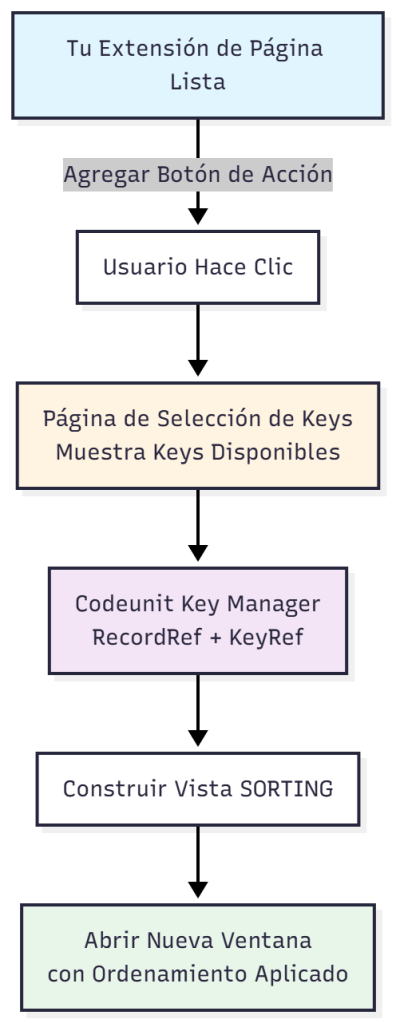
La solución utiliza una arquitectura de los siguientes componentes que funciona con cualquier página de lista:
- Contenedor de metadatos (tabla temporal): Una tabla temporal para almacenar información de las claves de una tabla.
table 78452 "GDRG Table Key"
{
    TableType = Temporary;  // No database storage needed

    fields
    {
        field(1; "Entry No."; Integer) { }
        field(2; "Table No."; Integer) { }  // Which table these keys belong to
......- Lector de metadatos (RecordRef): Itera a través de todas las claves definidas en una tabla.
procedure GetTableKeys(TableNo: Integer; var TempTableKey: Record "GDRG Table Key" temporary)
var
    RecRef: RecordRef;
    KeyRef: KeyRef;
begin
    RecRef.Open(TableNo);  // Open ANY table dynamically

    // Iterate through all keys defined in the table
    for i := 1 to RecRef.KeyCount() do begin
        KeyRef := RecRef.KeyIndex(i);
......- Gestor del ordenamiento: Convierte la clave seleccionada en la sintaxis
SORTING()de BC.
procedure BuildTableViewFromKey(TableNo: Integer; KeyNo: Integer): Text
var
    RecRef: RecordRef;
    KeyRef: KeyRef;
    SortingText: Text;
begin
    RecRef.Open(TableNo);
    KeyRef := RecRef.KeyIndex(KeyNo);

    SortingText := 'SORTING(';

// Build field list for SORTING clause
   for i := 1 to KeyRef.FieldCount() do begin
.....- Interfaz de usuario (Cuadro de diálogo de selección): Página para selección de clave.
page 78452 "GDRG Key Selection"
{
    PageType = List;
    SourceTable = "GDRG Table Key";
    SourceTableTemporary = true;
    Caption = 'Select Sort Order';
    Editable = false;
.....- Patrón de integración (extensión de página): Añade a cualquier página de lista con este patrón simple.
pageextension 78453 "GDRG Customer List Ext" extends "Customer List"
{
    actions
    {
        addlast(processing)
        {
            action(ChangeSortOrder)
            {
                Caption = 'Change Sort Order';
                Image = SortAscending;
                Promoted = true;

                trigger OnAction()
                var
.....
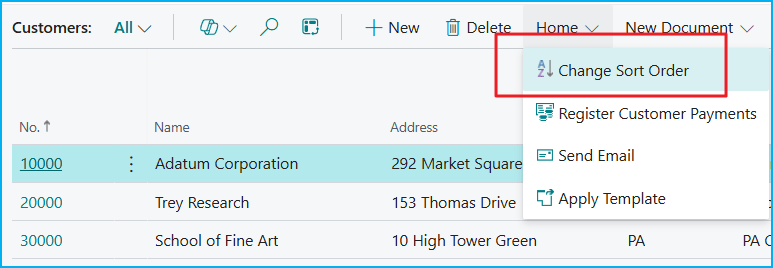
Por ejemplo, en la Página de lista de clientes tenemos el botón de «Cambiar ordenación» en el menú.
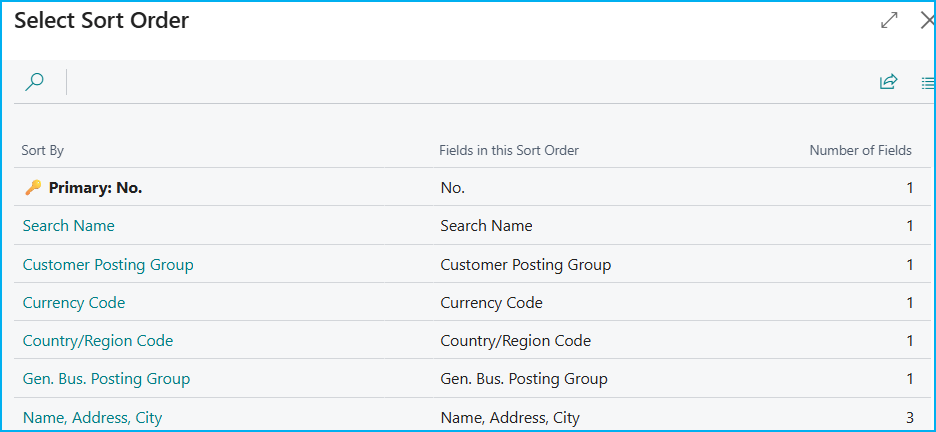
La página «Seleccionar ordenación» muestra las claves disponibles con los siguientes datos:
- Indicador de clave principal. (PK)
- Múltiples claves listadas («Search Name», «Name, Address, City», «Currency Code», etc.)
- Composición de campos visible para cada clave.
- Columna de número de campos.
Luego de seleccionar la clave deseada, se abrirá una nueva ventana de la lista de clientes con el título de la clave adicional: «Clientes – Ordenados por: Name, Address, City». La ventana original permanece sin cambios.
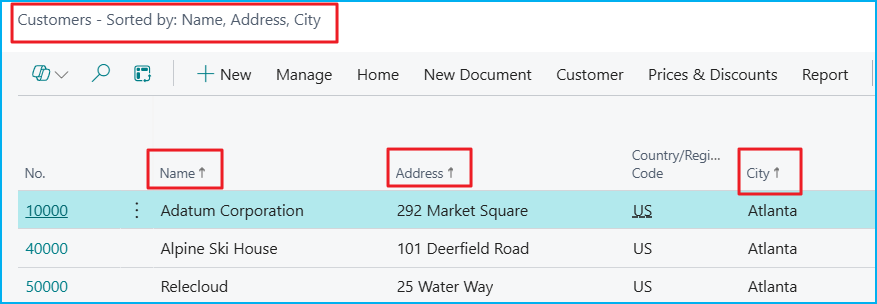
Si deseas ver más campos de la clave seleccionada en la lista, crea extensiones de página para que esos campos sean visibles. De esta manera, podrás apreciar realmente la clasificación de múltiples campos en acción.
El código se encuentra aquí, por si quieres revisarlo: Blog/GDRGDev_Sorting at main · gdrgdev/Blog
La solución se compone:
- GDRGTableKey.Table.al – Contenedor de metadatos.
- GDRGKeyManager.Codeunit.al – Motor principal de tablas/claves.
- GDRGKeySelection.Page.al – Página de selección de claves.
- GDRGCustomerListExt.PageExt.al – Ejemplo de lista de clientes.
- GDRGSalesOrderListExt.PageExt.al – Ejemplo de lista de pedidos de venta.
- GDRGKeyManager.PermissionSet.al – Configuración de seguridad.
Espero que esta extensión te ayude a ahorrar tiempo en tu trabajo diario con Business Central.
🕐 Remember When Lists Could Sort By Any Key? 🔄
When working with list pages in Business Central, you can click a column header to sort by that single field, but what if you need to sort by multiple fields in a specific order?
While exploring ways to offer more flexible sorting options, I thought about using table keys. Every BC table has predefined keys designed for optimal data retrieval and sorting. I was reminded of the NAV/C/SIDE era, when we could open any list, press a few keys, and instantly see its data sorted by any key defined in the table.
The solution uses an architecture of the following components that works with any list page:
- Metadata container (temporary table): A temporary table to store information about the keys of a table.
table 78452 "GDRG Table Key"
{
    TableType = Temporary;  // No database storage needed

    fields
    {
        field(1; "Entry No."; Integer) { }
        field(2; "Table No."; Integer) { }  // Which table these keys belong to
......- Metadata reader (RecordRef): Iterates through all the keys defined in a table.
procedure GetTableKeys(TableNo: Integer; var TempTableKey: Record "GDRG Table Key" temporary)
var
    RecRef: RecordRef;
    KeyRef: KeyRef;
begin
    RecRef.Open(TableNo);  // Open ANY table dynamically

    // Iterate through all keys defined in the table
    for i := 1 to RecRef.KeyCount() do begin
        KeyRef := RecRef.KeyIndex(i);
......- Sort Manager: Converts the selected key into BC’s SORTING() syntax.
procedure BuildTableViewFromKey(TableNo: Integer; KeyNo: Integer): Text
var
    RecRef: RecordRef;
    KeyRef: KeyRef;
    SortingText: Text;
begin
    RecRef.Open(TableNo);
    KeyRef := RecRef.KeyIndex(KeyNo);

    SortingText := 'SORTING(';

// Build field list for SORTING clause
   for i := 1 to KeyRef.FieldCount() do begin
.....- User Interface (Selection Dialog): Key Selection Page.
page 78452 "GDRG Key Selection"
{
    PageType = List;
    SourceTable = "GDRG Table Key";
    SourceTableTemporary = true;
    Caption = 'Select Sort Order';
    Editable = false;
.....- Integration pattern (page extension): Add to any list page with this simple pattern.
pageextension 78453 "GDRG Customer List Ext" extends "Customer List"
{
    actions
    {
        addlast(processing)
        {
            action(ChangeSortOrder)
            {
                Caption = 'Change Sort Order';
                Image = SortAscending;
                Promoted = true;

                trigger OnAction()
                var
.....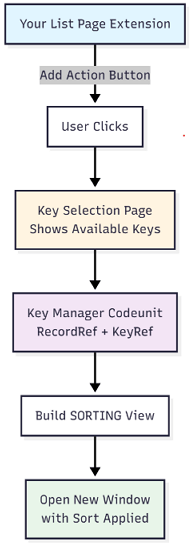
For example, on the Customer List Page we have the «Change Sort Order» button in the menu.
The «Select Sort Order» page displays the available keys with the following data:
- Primary key indicator (PK).
- Multiple keys listed («Search Name», «Name, Address, City», «Currency Code», etc.)
- Fields composition visible for each key.
- Number of fields.
After selecting the desired key, a new customer list window will open with the additional key title: «Customers – Sorted by: Name, Address, City». The original window remains unchanged.
If you want to see more fields for the key selected in the list, create page extensions to make those fields visible. This way, you can truly appreciate the multi-field sorting in action.
The code is here, if you want to check it out: Blog/GDRGDev_Sorting at main · gdrgdev/Blog
The solution is composed of these objects:
- GDRGTableKey.Table.al – Metadata container.
- GDRGKeyManager.Codeunit.al – Main table/key engine.
- GDRGKeySelection.Page.al – Key selection page.
- GDRGCustomerListExt.PageExt.al – Example customer list.
- GDRGSalesOrderListExt.PageExt.al – Example sales order list.
- GDRGKeyManager.PermissionSet.al – Security settings.
I hope this extension helps you save time in your daily work with Business Central
Más información / More information:


 Gerardo Rentería Blog
Deja un comentario