📖 Improving the error experience in BC with contextual links 📢 (English version)
📖 Mejorando la experiencia de error en BC con enlaces contextuales 📢
En Business Central tenemos acceso a la página «Vínculos hacia adelante» (ForwardLink) donde vemos todos los enlaces predefinidos que Microsoft ha configurado para situaciones comunes como:
- BLOCKED CUSTOMER: Enlace a documentación sobre clientes bloqueados.
- BLOCKED ITEM: Ayuda para productos bloqueados.
- FINANCE POSTING GROUPS: Documentación sobre grupos de registro.
- TROUBLESHOOTING DIMENSIONS: Guías para problemas con dimensiones.
Cada «ForwardLink» tiene tres componentes clave:
- Name: El código único que identifica el enlace.
- Description: Texto descriptivo del enlace.
- Link: La URL real que se abrirá.

¿Dónde aparecen estos enlaces en la práctica?: Cuando ocurre un error que tiene un «ForwardLink» asociado, Business Central automáticamente muestra el campo Vínculo (Support URL) en la página de Error Messages.
En el recuadro rojo de la imagen inferior, aparece el enlace directo a la documentación de Microsoft. En este caso, el error «Producto 1996-S está bloqueado» automáticamente incluye el enlace https://go.microsoft.com/fwlink/?linkid=2094578 que lleva directamente a la solución.

Una de las cosas más interesantes es que los «ForwardLinks» personalizados conviven perfectamente con los estándar. En la imagen inferior vemos el botón «Cargar», el cual, no solo carga los «ForwardLinks» estándar, sino que también ejecuta un código «Event Subscriber» en una Codeunit que automáticamente agrega nuestros enlaces personalizados.
[EventSubscriber(ObjectType::Table, Database::"Named Forward Link", OnLoad, '', false, false)]En el ejemplo, tenemos 3 nuevos vínculos:
- CUSTOM_GENERAL_VALIDATION: General validation help – Solution guide.
- CUSTOM_INTEGRATION_PBI: Power BI integration – Solutions.
- CUSTOM_WORKFLOW_HELP: Custom workflow help.
Estos vínculos ahora están disponibles para usar en cualquier error de nuestras extensiones.

Luego de completar las configuraciones, nos apoyaremos en una página de pruebas, que permitirá simular diferentes escenarios y ver cómo funcionan en la práctica.
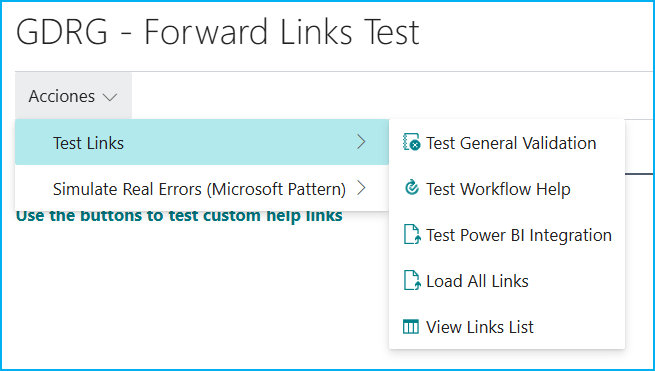
La página de pruebas contiene dos grupos de acciones:
Test Links: Para pruebas directas:
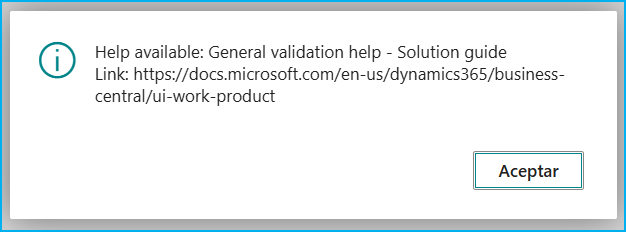
- Test (General/WorkFlow/Power BI): Prueba el enlace a la documentación correspondiente configurada.
- Load All Links: Carga manualmente todos los «ForwardLinks» personalizados.
- View Links List: Abre la página estándar de «ForwardLinks» para verificar.
El grupo «Simulate Real Errors» no solo prueba los enlaces, sino que simula cómo funcionarían en un escenario real.
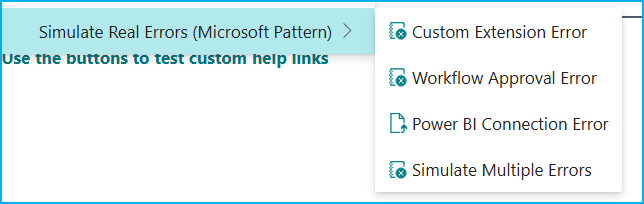
Cuando presionamos el botón «Simulate Multiple Errors» el sistema simula tres tipos diferentes de errores en una sola operación, cada uno con su «ForwardLink» específico:
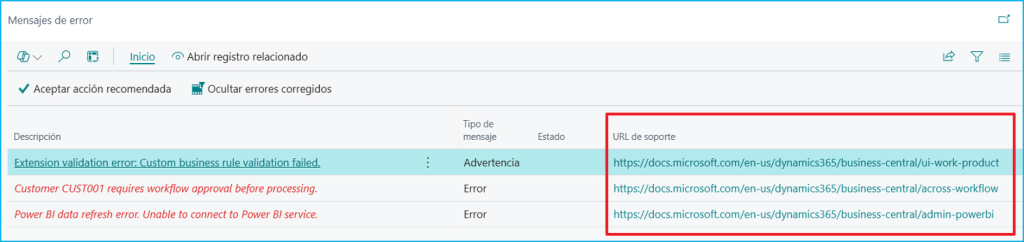
En la página Error Messages vemos los tres errores diferentes:
- Extension validation error: Custom business rule validation failed: Enlace directo a documentación general de BC.
- Customer CUST001 requires workflow approval before processing: Enlace directo a documentación de workflows.
- Power BI data refresh error. Unable to connect to Power BI service: Enlace directo a documentación de Power BI.
El código se encuentra aquí, por si quieres revisarlo: Blog/GDRGDev_ForwardLinks at main · gdrgdev/Blog
Los objetos son los siguientes:
- GDRGForwardLinkMgt.Codeunit.al: Gestiona la creación y configuración de ForwardLinks personalizados.
- GDRGForwardLinkSubscriber.Codeunit.al: Event Subscriber que carga automáticamente los enlaces personalizados.
- GDRGForwardLinksTestPage.Page.al: Página de pruebas para simular errores y probar ForwardLinks.
- GDRGErrorMessagesExt.PageExt.al: Extensión que hace visible el campo Support URL en Error Messages.
Por lo anteriormente visto, creo que esta funcionalidad poco conocida nos ofrece una posibilidad única para obtener acceso a la solución específica dependiendo del error que se presente y ayudar al usuario final a solucionar los problemas.
Espero que esta información te ayude.
📖 Improving the error experience in BC with contextual links 📢
In Business Central, we have access to the «Forward Links» page where we see all the predefined links that Microsoft has configured for common situations such as:
- BLOCKED CUSTOMER: Link to documentation on blocked customers.
- BLOCKED ITEM: Help for blocked items.
- FINANCE POSTING GROUPS: Documentation on posting groups.
- TROUBLESHOOTING DIMENSIONS: Guides for problems with dimensions.
Each «ForwardLink» has three key components:
- Name: The unique code that identifies the link.
- Description: Descriptive text of the link.
- Link: URL to open.

Where do these links appear in practice?: When an error occurs that has an associated «ForwardLink», Business Central automatically displays the Support URL field on the Error Messages page.
The red box in the image below shows the direct link to Microsoft documentation. In this case, the «Item 1996-S is blocked» error automatically includes the link https://go.microsoft.com/fwlink/?linkid=2094578, which leads directly to the solution.

One of the most interesting things is that custom ForwardLinks coexist perfectly with standard ones. In the image below, we see the «Load» button, which not only loads the standard ForwardLinks but also executes an «Event Subscriber» code in a Codeunit that automatically adds our custom links.
[EventSubscriber(ObjectType::Table, Database::"Named Forward Link", OnLoad, '', false, false)]In the example, we have 3 new links:
- CUSTOM_GENERAL_VALIDATION: General validation help – Solution guide.
- CUSTOM_INTEGRATION_PBI: Power BI integration – Solutions.
- CUSTOM_WORKFLOW_HELP: Custom workflow help.
These links are now available for use in any error in our extensions.

After completing the configurations, we’ll use a test page, which will allow us to simulate different scenarios and see how they work in practice.
The test page contains two groups of actions:
Test Links: For direct testing:
- Test (General/WorkFlow/Power BI):Try the link to the corresponding documentation configured.
- Load All Links: Manually load all custom «ForwardLinks».
- View Links List: Open the standard «ForwardLinks» page to verify.
The «Simulate Real Errors» group not only tests links, but also simulates how they would work in a real-life scenario.
When we press the «Simulate Multiple Errors» button, the system simulates three different types of errors in a single operation, each with its specific «ForwardLink»:
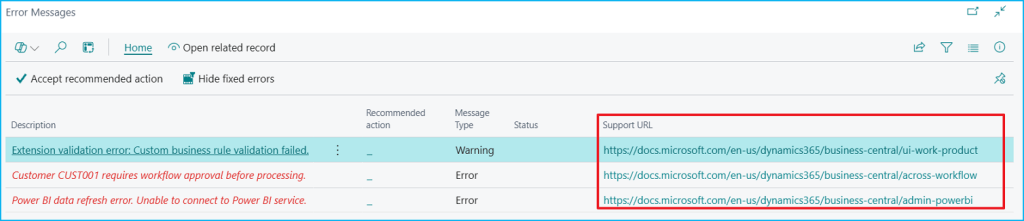
On the Error Messages page we see the three different errors:
- Extension validation error: Custom business rule validation failed: Direct link to general BC documentation.
- Customer CUST001 requires workflow approval before processing: Direct link to workflow documentation.
- Power BI data refresh error. Unable to connect to Power BI service: Direct link to Power BI documentation.
The code is here, if you want to check it out: Blog/GDRGDev_ForwardLinks at main · gdrgdev/Blog
The objects are as follows:
- GDRGForwardLinkMgt.Codeunit.al: Manages creation and configuration of custom ForwardLinks.
- GDRGForwardLinkSubscriber.Codeunit.al: Event Subscriber that automatically loads custom links.
- GDRGForwardLinksTestPage.Page.al: Test page to simulate errors and test ForwardLinks.
- GDRGErrorMessagesExt.PageExt.al: Extension that makes Support URL field visible in Error Messages.
Based on the above, I believe this little-known feature offers us a unique opportunity to access specific solutions (URLs) depending on the error presented and help the end user solve problems.
I hope this information helps you.
Más información / More information:


 Gerardo Rentería Blog
Deja un comentario