
🤖 Manage your projects, repositories, and more with Azure DevOps MCP Server ✅(English version)
🤖 Gestiona tus proyectos, repositorios y más con Azure DevOps MCP Server ✅
El servidor MCP de Azure DevOps es un proyecto open source que permite a las organizaciones tener visibilidad, control y cumplimiento sobre sus entornos DevOps.
Este proyecto implementa un servidor compatible con el Model Context Protocol (MCP), que permite a los agentes de lenguaje interactuar con servicios de Azure DevOps de forma segura, estructurada y extensible.
En este caso, el servidor MCP para Azure DevOps permite acceder a tus proyectos, repositorios, builds, work items y más, todo desde un agente LLM.
¿Qué puede hacer un agente con este servidor MCP?
- Consultar y listar proyectos, ramas y repositorios.
- Obtener información sobre builds, releases y pipelines.
- Crear y actualizar work items.
- Navegar backlogs y consultar queries.
- 👀 Todo esto usando lenguaje natural.
De esta manera aumentamos la productividad al reducir el tiempo de navegación y búsqueda manual.
Para activarlo requieres:
- Instalar Node.js 20+: Node.js — Download Node.js®
- Instalar Azure CLI: How to install the Azure CLI | Microsoft Learn
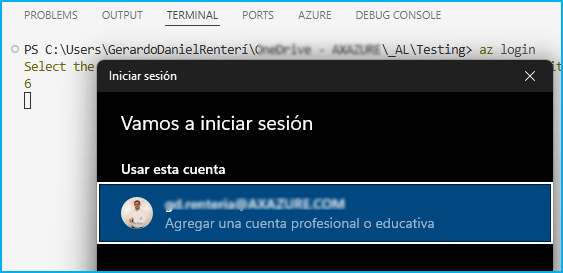
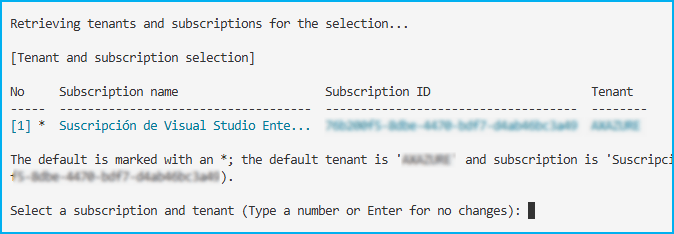
- Actualizar el archivo de configuración mcp.json de la siguiente manera:
{
   "inputs": [
     {
         "id": "<Organization>",
         "type": "promptString",
         "description": "Azure DevOps organization name  (e.g. 'contoso')"
     }
   ],
   "servers": {
     "ado": {
         "type": "stdio",
         "command": "npx",
         "args": [
             "-y",
             "@azure-devops/mcp",
             "${input:<Organization>}"
         ]
      }
   }
}- Guardamos el archivo y presionamos «iniciar», y escribimos el nombre de la organización.


En el modo agente, ya veríamos disponibles las herramientas.

A partir de aquí, puedes probar varios prompts como los siguientes:
- List of azure projects.
- List of repos for <Name> project.
- List the work items assigned to <resource> in the <Name> project.
- In which repository of the <Name> project is there a field called <FieldName>?
Los resultados son totalmente acertados, y validamos que tenemos acceso directo a la información de Azure DevOps sin necesidad de navegar manualmente por la interfaz web.

Espero que esta información te ayude.
🤖 Manage your projects, repositories, and more with Azure DevOps MCP Server ✅
Azure DevOps MCP Server is an open source project that enables organizations to gain visibility, control, and compliance over their DevOps environments.
This project implements a server compatible with the Model Context Protocol (MCP), which allows language agents to interact with Azure DevOps services in a secure, structured, and extensible way.
In this case, the MCP server for Azure DevOps allows access to your projects, repositories, builds, work items, and more, all from an LLM agent.
What can an agent do with this MCP server?
- Query and list projects, branches, and repositories.
- Obtain information about builds, releases, and test plans.
- Create and update work items.
- Browse backlogs and..
- 👀 All of this using natural language.
In this way, we increase productivity by reducing manual browsing and searching time.
To activate it you need:
- Install Node.js 20+: Node.js — Download Node.js®
- Install Azure CLI: How to install the Azure CLI | Microsoft Learn
- Update the mcp.json configuration file as follows:
{
   "inputs": [
     {
         "id": "<Organization>",
         "type": "promptString",
         "description": "Azure DevOps organization name  (e.g. 'contoso')"
     }
   ],
   "servers": {
     "ado": {
         "type": "stdio",
         "command": "npx",
         "args": [
             "-y",
             "@azure-devops/mcp",
             "${input:<Organization>}"
         ]
      }
   }
}- Save the file and press «start», and we write the name of the organization.

In agent mode, we would already see the tools available.
From here, you can try several prompts such as the following:
- List of azure projects.
- List of repos for <Name> project.
- List the work items assigned to <resource> in the <Name> project.
- In which repository of the <Name> project is there a field called <FieldName>?
The results are completely accurate, and we confirm that we have direct access to Azure DevOps information without having to manually navigate through the web interface.
I hope this information helps you.
Más información / More information:


 Gerardo Rentería Blog
Deja un comentario