💻Analyze Business Central telemetry with Kusto.Explorer (cross-tenant) 🕵🏼(English version)
💻Analizar la telemetría de Business Central con Kusto.Explorer (diferente tenant) 🕵🏼
En una publicación anterior aprendimos como utilizar la herramienta Kusto.Explorer para el análisis de la telemetría Do you want to analyze Business Central telemetry with Kusto.Explorer? – Gerardo Rentería Blog
Debemos tener algunas consideraciones y atenciones si es que debemos abordar este análisis en ambientes de otras organizaciones diferentes(tenant). Por ejemplo, trabajar con un usuario (cuenta) de partner y debes acceder a los servicios de Azure Application Insights de tus clientes que se encuentran en otras organizaciones.
Si no realizas las configuraciones adecuadas te encontrarás con un mensaje similar al siguiente, cuando quieras conectarte a través de Kusto.Explorer.

Una solución para superar esta incidencia y es la que he utilizado es forzar a no usar el tenant por defecto del usuario que utilizamos para conectarnos.
Para realizar esto debemos agregar una nueva propiedad a la cadena de conexión que usamos en Kusto.Explorer para conectarnos: «Authority Id» Kusto connection strings – Kusto | Microsoft Learn
Por lo que, para conectarnos usaremos el apartado de cadena de conexión avanzada.

La cadena de conexión por defecto es la siguiente:
Data Source=https://cluster.kusto.windows.net;Initial Catalog=NetDefaultDB;AAD Federated Security=TrueCambiaremos esta cadena de conexión por la siguiente, y los valores de los siguientes puntos: <subscription-id>, <resource-group-name> y <ai-app-name> están relacionados al servicio de Azure Application Insights y están explicados en mi publicación anterior.
Data Source=https://ade.applicationinsights.io/subscriptions/<subscription-id>/resourcegroups/<resource-group-name>/providers/microsoft.insights/components/<ai-app-name>;Initial Catalog=NetDefaultDB;AAD Federated Security=True;Authority Id=<Tenant ID>El valor de la nueva propiedad «Authority Id» (<Tenant ID>) lo obtendremos de Azure de la opción de «Microsoft Entra ID». Find tenant ID, domain name, user object ID | Microsoft Learn


Luego de configurar la cadena de conexión adecuadamente, podremos acceder a las tablas de telemetría.

Espero que esta información te ayude.
💻Analyze Business Central telemetry with Kusto.Explorer (cross-tenant) 🕵🏼
In a previous post we learned how to use the Kusto.Explorer tool for telemetry analysis. Do you want to analyze Business Central telemetry with Kusto.Explorer? – Gerardo Rentería Blog
There are some considerations to be taken into account if we need to analyze telemetry in environments of other different organizations (tenants). For example, working with a partner user (account) and you need to access the Azure Application Insights services of your customers that are in other organizations.
If you do not make the right settings, you will get a message similar to the following, when you want to connect through Kusto.Explorer.
A solution to overcome this issue and is the one I have used is to force not to use the default tenant of the user that we use to connect.
To do this we must add a new property to the connection string we use in Kusto.Explorer to connect: «Authority Id». Kusto connection strings – Kusto | Microsoft Learn
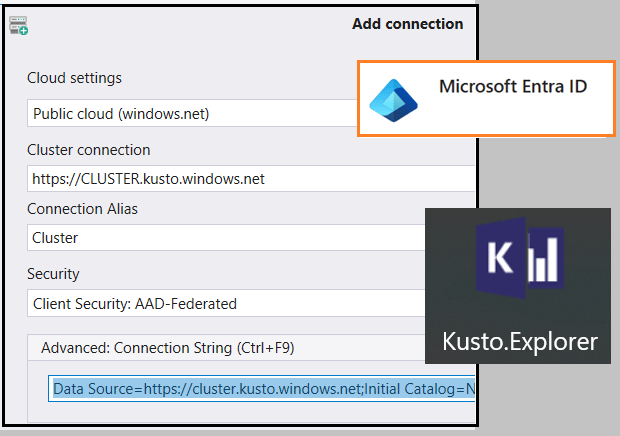
So, to connect we will use the advanced connection string section.
The default connection string is as follows:
Data Source=https://cluster.kusto.windows.net;Initial Catalog=NetDefaultDB;AAD Federated Security=TrueWe will change this connection string to the following, and the values of the following tags: <subscription-id>, <resource-group-name> y <ai-app-name> are related to the Azure Application Insights service and are explained in my previous post.
Data Source=https://ade.applicationinsights.io/subscriptions/<subscription-id>/resourcegroups/<resource-group-name>/providers/microsoft.insights/components/<ai-app-name>;Initial Catalog=NetDefaultDB;AAD Federated Security=True;Authority Id=<Tenant ID>The value of the new property “Authority Id” will be obtained from Azure from the “Microsoft Entra ID” option. Find tenant ID, domain name, user object ID | Microsoft Learn
After configuring the connection string properly, we will be able to access the telemetry tables.
I hope this information helps you.
Más información / More information:
- Do you want to analyze Business Central telemetry with Kusto.Explorer? – Gerardo Rentería Blog
- Kusto Query Language (KQL) overview – Azure Data Explorer & Real-Time Analytics | Microsoft Learn
- Analyze and Monitor Telemetry with KQL
- BCTech/samples/AppInsights/KQL at master · microsoft/BCTech
- Introducing Azure AD Cross-Tenant Synchronization – Stefano Demiliani
- Troubleshooting Azure Data Explorer (Kusto) cross-tenant access issues | by Herman Wu | Medium


 Gerardo Rentería Blog
Deja un comentario