
Do you want to test azure functions locally? 🛠️(English version)
¿Quieres probar funciones de Azure localmente?🛠️
Durante el proceso de las pruebas de las funciones de Azure (Azure Functions) de manera local con Visual Studio Code (VSC), me encontré con algunas observaciones y consideraciones que les comparto.
¿Qué necesito para desarrollar, probar y depurar?
Es importante identificar que herramientas requieres para desarrollar y probar las funciones de Azure desde tu máquina. Debes cumplir ciertos requisitos:
- Desarrollo de Azure Functions: Requisitos previos
- Desarrollo de Azure Functions localmente mediante Core Tools


Instalación de paquetes Nuget
Si alguna vez nos encontramos con un código que no funciona, y nos muestra errores de compilación es posible que sea porque no tenemos la referencia de una librería o un framework. Por ejemplo, en la siguiente imagen, nos indica que la función JsonConvert no lo identifica. O un error común sería el siguiente: NuGet Error NU1101

En este caso, debemos buscar e instalar el paquete adecuado. NuGet in Visual Studio Code
Si en el momento de intentar instalar un paquete, tenemos un mensaje similar a:

Debemos analizar los archivos de configuración, por ejemplo, el archivo NuGet.Config que determina la configuración de usuario. Según la imagen vemos que la búsqueda de paquetes lo hará al nivel de la carpeta C:\Program Files (x86)\Microsoft SDKs\NuGetPackages\.
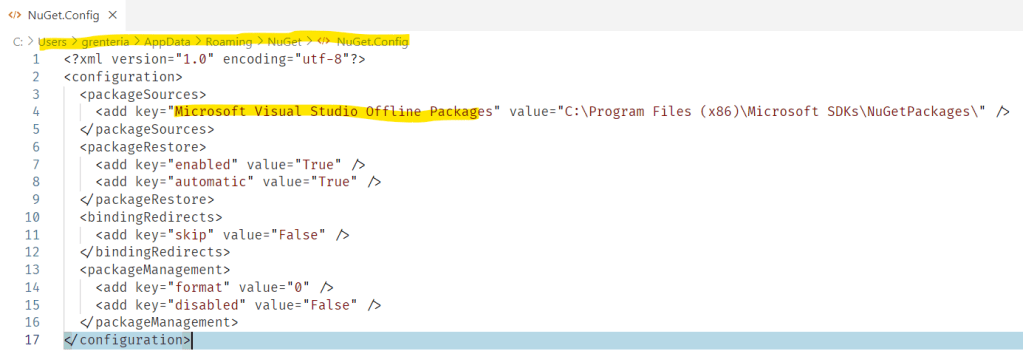
Entonces, si añadimos el valor de Nuget.org, le estamos indicando donde buscar adicionalmente.

Posteriormente repetimos la búsqueda y ya encuentra el paquete.

Ejecución de desencadenar HTTP para una Función de Azure
Este tipo de desencadenador permite invocar una función con una solicitud HTTP.
- Desarrollo de Azure Functions localmente mediante Core Tools | Microsoft Learn
- Desencadenador HTTP de Azure Functions | Microsoft Learn
Para las pruebas podríamos apoyarnos en otras extensiones como la de Postman o Thunder Client.
Cuando probamos la función de Azure obtenemos un URL temporal para probarlo localmente.

De esta manera probamos este tipo de funciones de Azure.

Ejecución de desencadenador de temporizador para una Función de Azure (no HTTP)
Si desarrollamos una función de Azure relacionada a un desencadenador de temporizador (Timer), y no hemos configurado adecuadamente tendremos el siguiente mensaje.
The listener for function 'Functions.TimerTriggerDoSomething' was unable to start. Microsoft.Azure.WebJobs.Extensions.Timers.Storage: Could not create BlobContainerClient for ScheduleMonitor.
Es importante revisar la configuración «AzureWebJobsStorage» en el archivo «local.settings.json» . Para más información:
Si no tiene valor alguno, hay que colocar: UseDevelopmentStorage=true

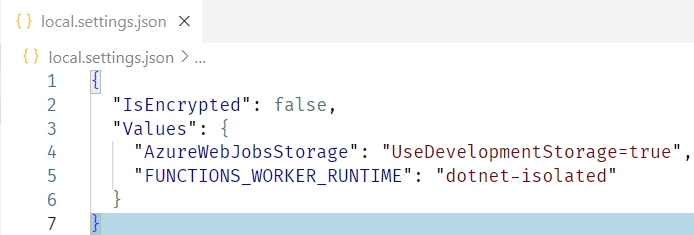
Pero es posible que luego de este cambio, de igual manera, el siguiente mensaje aparezca.
Failed to verify "AzureWebJobsStorage" connection specified in "local.settings.json". Is the local emulator installed and running?
En este caso requerimos instalar un emulador de almacenamiento local, el recomendado es el Azurite. Más información:
- Entornos de desarrollo locales – Emulador de almacenamiento local | Microsoft Learn
- Uso del Emulador de Azure Storage para desarrollo y pruebas (en desuso) | Microsoft Learn
- Uso del emulador de Azurite para el desarrollo local de Azure Storage | Microsoft Learn

Luego de instalarlo, en la barra inferior aparecen nuevas opciones. Tendremos que iniciar el servicio de Azurite Blob.

Cuando iniciemos el servicio, volvemos a probar el servicio de azure.

No tendremos ningún mensaje adicional, y podremos probar la función de Azure.

Vemos su correcta ejecución.

Migrar de Newtonsoft.Json a System.Text.Json
Si estás trabajando con objetos JSON es posible que te indiquen que uses una librería u otra. Estoy hablando de las librerías Newtonsoft.Json o System.Text.Json.
Es importante que revises las diferencias y compatibilidades, así como el alcance de cada una de ellas.
- Migración desde Newtonsoft.Json a System.Text.Json
- The convenience of System.Text.Json
- What’s next for System.Text.Json?
Espero que esta información te ayude.
Do you want to test azure functions locally? 🛠️
During the process of testing Azure Functions locally with Visual Studio Code (VSC), I came across some observations and considerations that I share with you.
What do I need to develop, test and debug?
It is important to identify what tools you require to develop and test Azure functions from your machine. You must meet certain requirements:
- Develop Azure Functions by using Visual Studio Code – Prerequisites | Microsoft Learn
- Develop Azure Functions locally using Core Tools – Run a local function | Microsoft Learn
Installing Nuget packages
If we ever find code that does not work, and shows us compilation errors, it may be because we do not have a reference to a library or framework. For example, in the following image, it tells us that the JsonConvert function does not identify it. Or a common error would be the following: NuGet Error NU1101
In this case, we must find and install the appropriate package. NuGet in Visual Studio Code
If at the time of trying to install a package, we have a message similar to:
We must review the configuration files, for example, the NuGet.Config file that determines the user configuration. According to the image we see that the package search will do so in the following folder C:\Program Files (x86)\Microsoft SDKs\NuGetPackages\.
So if we add the Nuget.org value, we are telling it where to look additionally: https://api.nuget.org/v3/index.json
Later we repeat the search and it finds the package.
Running a HTTP-triggered Azure Function
This type of trigger allows you to invoke a function with an HTTP request.
- Develop Azure Functions locally using Core Tools – Run a local function | Microsoft Learn
- Azure Functions HTTP trigger | Microsoft Learn
For testing we could rely on other extensions such as Postman or Thunder Client.
When we test the Azure function we get a temporary URL to test it locally.
In this way we test these types of Azure functions.
Running a non HTTP-triggered Azure Function (Timer)
If we develop an Azure function related to a timer trigger (Timer), and we have not configured it properly, we will have the following message.
The listener for function 'Functions.TimerTriggerDoSomething' was unable to start. Microsoft.Azure.WebJobs.Extensions.Timers.Storage: Could not create BlobContainerClient for ScheduleMonitor.It is important to review the «AzureWebJobsStorage» settings in the «local.settings.json» file. For more information:
If it does not have any value, you must set: UseDevelopmentStorage=true
But it is possible that after this change, the following message may also appear.
Failed to verify "AzureWebJobsStorage" connection specified in "local.settings.json". Is the local emulator installed and running?In this case we need to install a local storage emulator, the recommended one is Azurite. More information:
- Develop and run Azure Functions locally – Local storage emulator | Microsoft Learn
- Use the Azure Storage Emulator for development and testing (deprecated) | Microsoft Learn
- Use Azurite emulator for local Azure Storage development | Microsoft Learn
After installing it, new options appear in the bottom bar. We will have to start the Azurite Blob service.
When we start the service, we test the azure service again.
We won’t have any additional messages, and we can test the Azure function.
We see its correct execution.
Migrate from Newtonsoft.Json to System.Text.Json
If you are working with JSON objects, you may have to choose between one library or another. I’m talking about the Newtonsoft.Json or System.Text.Json libraries.
It is important that you review the differences and compatibilities, as well as the scope of each of them.
- Migrate from Newtonsoft.Json to System.Text.Json – .NET | Microsoft Learn
- The convenience of System.Text.Json
- What’s next for System.Text.Json?
I hope this information helps you.
Más información / More information:


 Gerardo Rentería Blog
Deja un comentario