Custom themes, Logos and Colors in Business Central 📔🌈
Temas personalizados, logotipos y colores en Business Central 📔🌈
En esta oportunidad me gustaría mostrarles que opciones tenemos para personalizar el tema, el logotipo y los colores que ven los usuarios mientras usan Business Central.
Primero debemos acceder al centro de administración de Microsoft 365, ir a la opción de «configuración», luego a la de «de la organización». https://admin.microsoft.com
En la pestaña «perfil de organización» , seleccionamos «temas personalizados».

Seleccionamos «agregar tema».
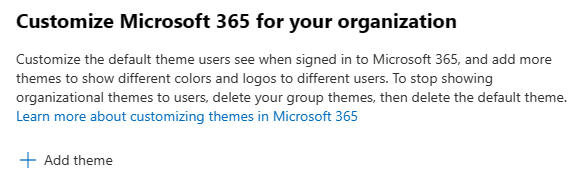
Visualizamos tres pestañas de configuraciones, la primera «general» es donde colocamos el nombre del tema (el primero se llama «tema por defecto»). Luego podemos agregar temas para grupos de Microsoft diferentes adicionales.
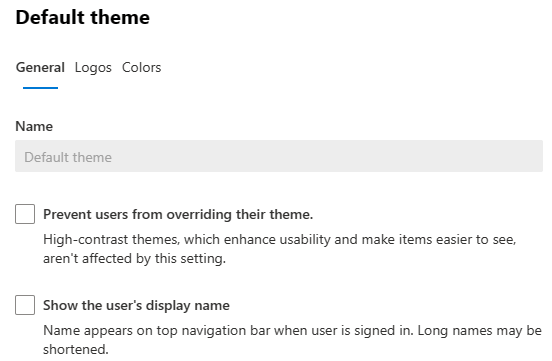
En la pestaña de «logotipos» agregamos el logotipo de la organización, además del logotipo alternativo para el tema oscuro, y un URL al cual nos dirigiremos cuando pulsemos el logotipo.

En la pestaña de «colores» personalizamos la combinación de colores especificando los colores de la barra de navegación, el texto y el icono.

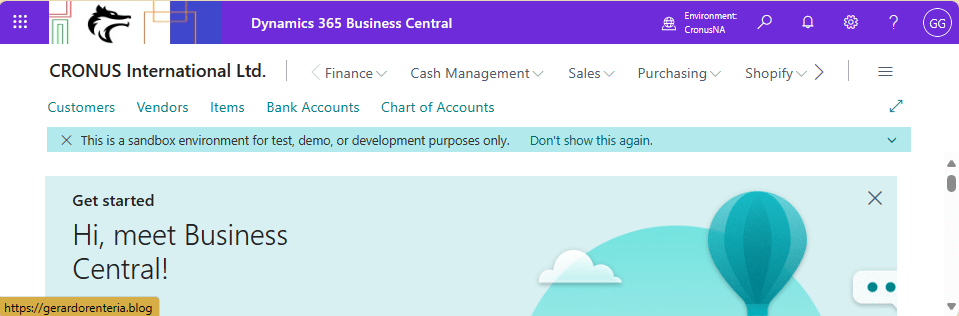
A continuación vemos el resultado final de nuestras configuraciones: el logotipo, el enlace al cual nos dirigiremos cuando lo pulsemos y el color seleccionado para la barra de navegación y las letras.
Además es posible si es que se lo permitimos que un usuario pueda cambiar el tema de manera individual. En este caso el usuario debe acceder a la opción de «configuración» desde Business Central e ir a la sección de «temas de Microsoft 365» y seleccionar el tema que más le agrade.

Ahora crearemos un nuevo grupo de Microsoft 365, accediendo al centro de administración de Microsoft 365, vamos a la opción de «equipos y grupos», luego a la de «equipos y grupos activos», y añadimos un grupo nuevo. Agregamos al grupo nuevo los usuarios deseados.

Luego volvemos a la opción que hemos mostrado anteriormente de «configuración» y «agregamos otro tema».

En la pestaña «general» seleccionamos el grupo de Microsoft 365 que será afectado por este tema, adicionalmente para el ejemplo estamos seleccionando las opciones de prevenir el cambio de tema y el de mostrar el nombre del usuario en la barra de navegación.

A continuación vemos el resultado final de nuestras configuraciones: el logotipo de la organización, otro color en la barra de navegación y en las letras, visualizamos el nombre del usuario al lado de sus iniciales, y además el usuario no tiene la capacidad de cambiar de tema que no sean los que le hemos configurado, por lo que no visualizará ningún otro tema adicional para modificarlo.

Algunas consideraciones adicionales son las siguientes:
- Los usuarios asignados a varios temas de grupo se les mostrará el tema predeterminado.
- Los nuevos temas de grupo deben asignarse a uno o varios grupos de Microsoft 365 y no a grupos de seguridad o grupos de distribución.
- El tema predeterminado solo se puede eliminar una vez eliminados todos los temas de grupo.
Espero que esta información te ayude.
Custom themes, Logos and Colors in Business Central 📔🌈
On this occasion I would like to show you what options we have to customize the theme, logo and colors that users see while using Business Central.
First we must access the Microsoft 365 admin center, go to the «settings» option, then to the «org settings» option. https://admin.microsoft.com
In the «organization profile» tab, we select «custom themes».
We select «add theme».
We see three settings tabs, the first «general» is where we put the name of the theme (the first is called «default theme»). We can then add themes for additional different Microsoft groups.
In the «logos» tab we add the organization’s logo, as well as the alternative logo for the dark theme, and a URL to which we will go when we click on the logo.
In the «colors» tab we customize the color scheme by specifying the colors of the navigation bar, text and icon.
Below we see the final result of our configurations: the logo, the link to which we will go when we click it and the color selected for the navigation bar and text.
It is also possible, if we allow it, for a user to change the theme individually. In this case, the user must access the «settings» option from Business Central and go to the «Microsoft 365 themes» section and select the theme that they like best.
Now we will create a new Microsoft 365 group, accessing the Microsoft 365 admin center, go to the «teams and groups» option, then to «active teams and groups», and add a new group. We add the desired users to the new group.
Then we return to the “settings” option that we showed previously and “add another theme”.
In the «general» tab we select the Microsoft 365 group that will be affected by this theme. Additionally, for the example we are selecting the options to prevent the user from changing the theme and to display the user’s name in the navigation bar .
Below we see the final result of our configurations: the organization logo, another color in the navigation bar and in text, we see the user’s name next to their initials, and also the user does not have the ability to change theme other than the ones we have configured, so it will not display other additional themes to modify it.
Some additional considerations are as follows:
- Users who are assigned to multiple group themes will be shown the default theme.
- New group themes must be mapped to one or more Microsoft 365 groups and not security groups or distribution groups
- The default theme can only be deleted once all group themes are deleted.
I hope this information helps you.
Más información / More information:


 Gerardo Rentería Blog
Deja un comentario