Accessibility in Business Central (English Version)
Accesibilidad en Business Central
La disponibilidad de software en la vida cotidiana es importante para todos, por lo que la accesibilidad es un reto en el desarrollo de software. Es necesario que las aplicaciones de software pueden ser utilizadas por personas con discapacidades, como aquellas con discapacidad visual, auditiva o funcional.
Las siguientes características permiten que Business Central esté disponible como facilidad para personas con discapacidades.
Atajos de teclado
Los atajos de teclado mejoran la accesibilidad al hacer que navegar a diferentes ubicaciones y elementos en una página sea cada vez más rápido. La mayoría de los navegadores en línea los admiten; sin embargo, el comportamiento puede diferir ligeramente.
Desde Business Central se accede a la documentación oficial detallada de todos los atajos disponibles para ser usados desde por ejemplo las páginas tipo lista, ficha y documentos, en operaciones de búsqueda y filtros, en campos tipo fechas y otros.

Atajos de teclado más usados en Business Central
PDF: https://learn.microsoft.com/es-es/dynamics365/business-central/media/keyboard_shortcuts.pdf


Con la configuración del idioma en inglés, y presionando la tecla ALT se puede mostrar teclas de acceso para navegar por la barra de acciones o el menú de navegación. Esto no es posible con el idioma español, espero que en algún momento también podamos gozar de esta facilidad. Microsoft Idea (dynamics.com)
En los siguientes enlaces podemos encontra la información detallada de todos los atajos de teclado y los más usados.
- Keyboard shortcuts – Business Central | Microsoft Learn
- Keyboard quick reference – PC only – Business Central | Microsoft Learn
Gestos táctiles y con lápiz
De igual manera contempla distintas formas de tocar la pantalla de una tableta o un móvil enviando distintas órdenes. Gestos táctiles y con lápiz – Business Central | Microsoft Learn

Navegación
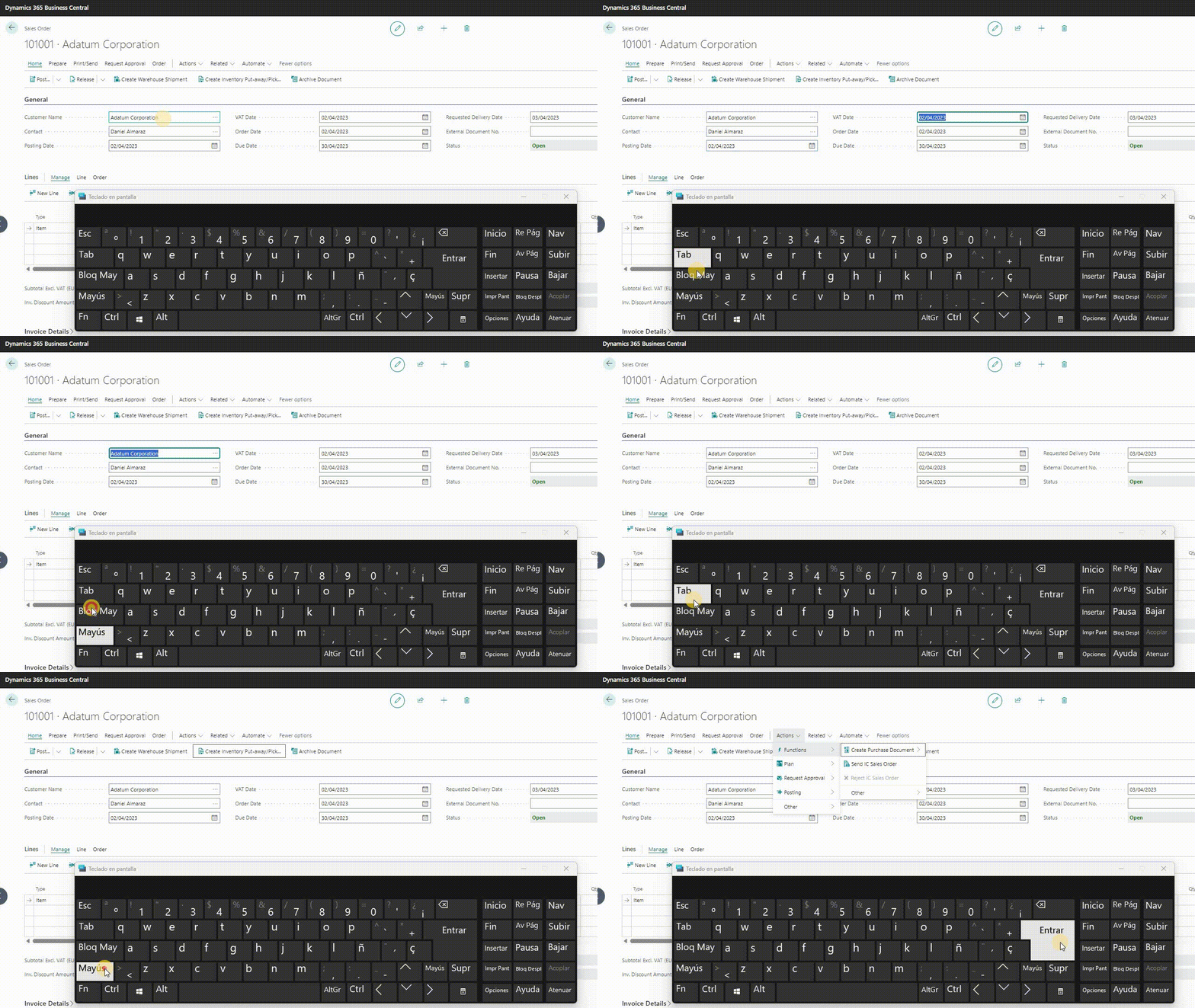
Puede usar diferentes combinaciones de las teclas Tabulador, Mayús y de flechas para moverse entre los elementos de una página.
- Tab = elemento siguiente
- Shift + Tab = elemento previo
- Teclas de flechas = moverse hacia la dirección
- Enter = seleccionar opciones
Encabezados en el contenido
Business Central utiliza etiquetas para ayudar a los usuarios de tecnologías de apoyo a comprender la estructura y el contenido de la página.
- ✎ Technique: Writing headings | Digital Accessibility (harvard.edu)
- How to read websites using a desktop screen reader – ADG (accessibility-developer-guide.com)
- Heading Levels for Assistive Technology: Promoting Inclusivity and Ease of Use / Blogs / Perficient

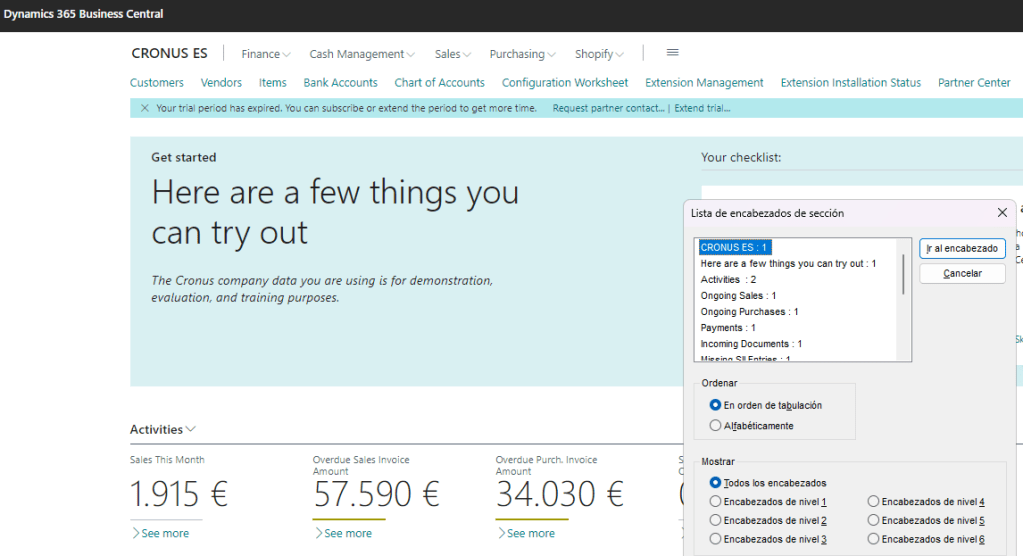
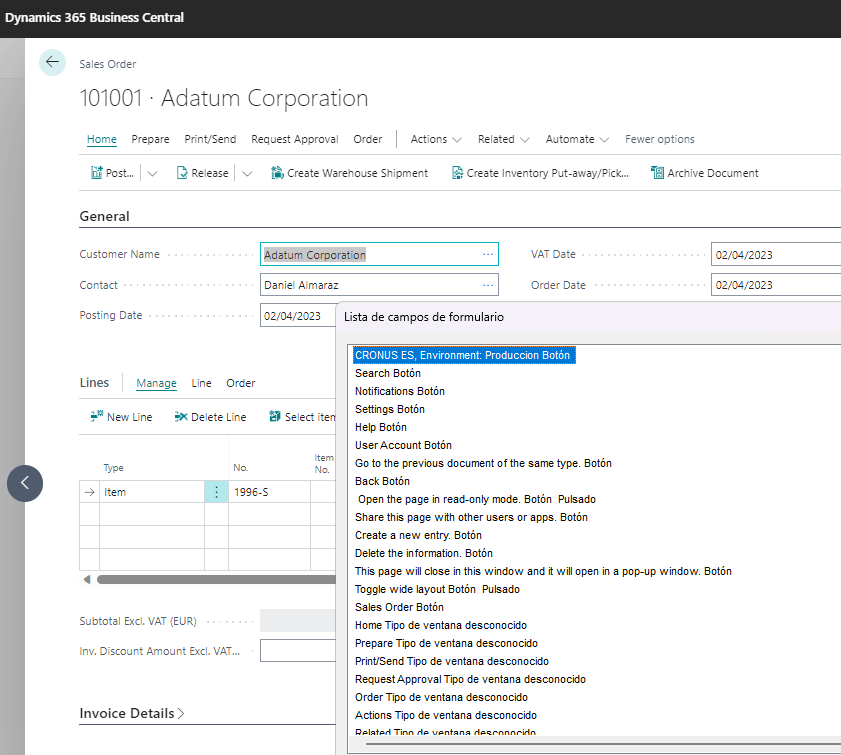
Imagen y vínculos
Business central usa un texto descriptivo para las imágenes se establece con el atributo ALT dentro de la etiqueta IMG. Un texto descriptivo para los hipervínculos se establece con el atributo title dentro de la etiqueta A.
- Descriptive Link Text | Accessible Technology | Michigan Tech (mtu.edu)
- Accessibility at Penn State | Image ALT Tag Tips for HTML (psu.edu)
Tecnologías de asistencia
Business Central es compatible con una gran variedad de tecnologías de apoyo, como el alto contraste, los lectores de pantalla (como JAWS y NVDA) y el software de reconocimiento de voz. Algunas partes de las páginas de Business Central pueden no ser compatibles con algunos dispositivos de asistencia.


Zoom
La mayoría de los navegadores utilizan atajos de teclado estándar para acercar y alejar la página actual. Métodos abreviados (zoomshortcuts) | Microsoft Learn
- Ctrl + (+) = ampliar la página
- Ctrl + (-) =alejar la página
- Ctrl + (0) = acercar o alejar al 100 % la página

Sugerencias sobre herramientas (Tooltips)
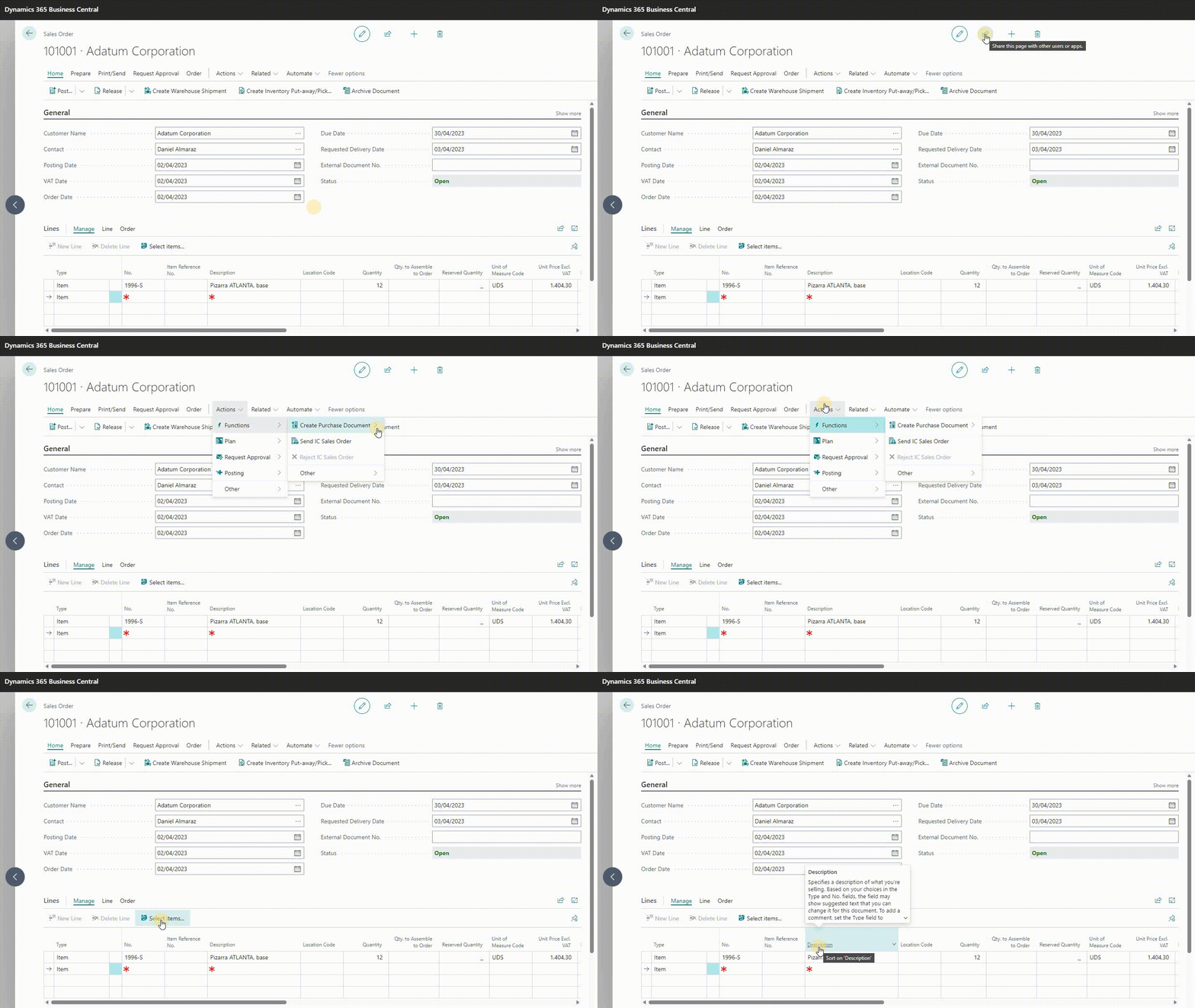
La mayoría de los componentes de la interfaz de usuario de Business Central, como los campos y columnas de la página, las acciones, los mosaicos de pistas y los gráficos, tienen información sobre herramientas. Un tooltip es un texto adicional que explica el significado de un determinado elemento.
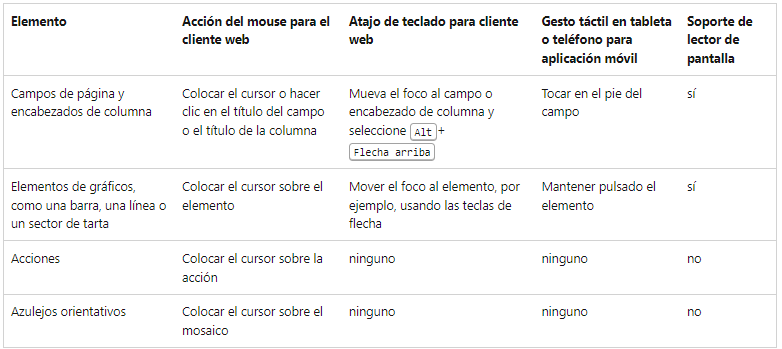
- ToolTip Property – Business Central | Microsoft Learn
- Add tooltips to your extension – Training | Microsoft Learn
IA y la accesibilidad
Las tecnologías impulsadas por la IA tienen el potencial de cambiar la accesibilidad y la inclusión de las personas con discapacidad, permitiéndoles navegar dentro de Business Central e interactuar con su entorno de manera más fácil y adecuada.
Es importante que sigamos invirtiendo en la accesibilidad con la ayuda de la IA para que la tecnología se convierta en un motor de cambios positivos en la vida de las personas con discapacidad.
- Three Ways AI Is Improving Assistive Technology (forbes.com)
- AI Accessibility: what are AI assistive technology examples? (handtalk.me)
- AI in the Future of AI-Powered Assistive Technology: Investing in Tools for Accessibility and Inclusion (ts2.space)
- AI for Accessibility Projects – Microsoft AI
Accessibility in Business Central
The availability of software in everyday life is important to everyone, so accessibility is a challenge in software development. Software applications are required to be usable by people with disabilities, such as those who are visually, hearing, or functionally impaired.
The following features make Business Central easily available to people with disabilities.
Keyboard Shortcuts
Keyboard shortcuts improve accessibility by making navigating to different locations and elements on a page faster and faster. Most online browsers support them; however, the behavior may differ slightly.
From Business Central you can access the detailed official documentation of all the shortcuts available to be used from, for example, list, card and document type pages, in search operations and filters, in date type fields and others.
Most used keyboard shortcuts in Business Central
PDF: https://learn.microsoft.com/es-es/dynamics365/business-central/media/keyboard_shortcuts.pdf

With the language setting in English, and pressing the ALT key you can show access keys to navigate through the action bar or the navigation menu. This is not possible with the Spanish language, I hope that at some point we can also enjoy this facility. Microsoft Idea (dynamics.com)
In the following links we can find detailed information of all the keyboard shortcuts and the most used ones.
- Keyboard shortcuts – Business Central | Microsoft Learn
- Keyboard quick reference – PC only – Business Central | Microsoft Learn
Touch and pen gestures
It also contemplates different ways of touching the screen of a tablet or a cell phone by sending different commands. Touch and pen gestures – Business Central | Microsoft Learn
Navigation
You can use different combinations of the Tab, Shift and arrow keys to move between items on a page.
- Tab = next element
- Shift + Tab = previous element
- Teclas de flechas = to move through the different actions and groups
- Enter = to open its underlying actions
Headings in Content
Business Central uses tags to help users of assistive technologies understand the structure and content of the page.
- ✎ Technique: Writing headings | Digital Accessibility (harvard.edu)
- How to read websites using a desktop screen reader – ADG (accessibility-developer-guide.com)
- Heading Levels for Assistive Technology: Promoting Inclusivity and Ease of Use / Blogs / Perficient
Image and Links
Business central uses descriptive text for images is set with the ALT attribute within the IMG tag. A descriptive text for hyperlinks is set with the title attribute within the A tag.
- Descriptive Link Text | Accessible Technology | Michigan Tech (mtu.edu)
- Accessibility at Penn State | Image ALT Tag Tips for HTML (psu.edu)
Assistive Technologies
Business Central supports a variety of assistive technologies, including high contrast, screen readers (such as JAWS and NVDA) and speech recognition software. Some parts of Business Central pages may not be compatible with some assistive devices.
Zoom
Most browsers use standard keyboard shortcuts to zoom in and out of the current page. Keyboard shortcuts (zoomshortcuts) | Microsoft Learn
- Ctrl + (+) = zoom in on the current page
- Ctrl + (-) =zoom out on the current page
- Ctrl + (0) = Zoom in or out to 100% on the current page
Tooltips
Most of Business Central’s user interface components, such as page fields and columns, actions, cue tiles and charts, have tooltips. A tooltip is an additional text that explains the meaning of a certain element.
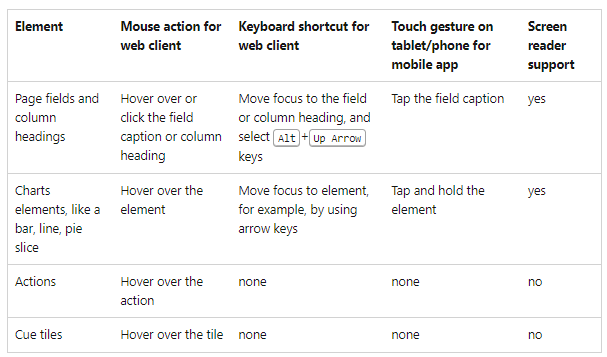
- ToolTip Property – Business Central | Microsoft Learn
- Add tooltips to your extension – Training | Microsoft Learn
AI and accessibility
AI-driven technologies have the potential to change accessibility and inclusion for people with disabilities, allowing them to navigate within Business Central and interact with their environment more easily and appropriately.
It is important that we continue to invest in accessibility with the help of AI so that technology becomes a driver of positive change in the lives of people with disabilities.
- Three Ways AI Is Improving Assistive Technology (forbes.com)
- AI Accessibility: what are AI assistive technology examples? (handtalk.me)
- AI in the Future of AI-Powered Assistive Technology: Investing in Tools for Accessibility and Inclusion (ts2.space)
- AI for Accessibility Projects – Microsoft AI
Más información


 Gerardo Rentería Blog
Deja un comentario