
Administration of Business Central (Part 1) (English Version)
Administración de Business Central (Parte 1)
General
Atención: Los siguientes usuarios están autorizados para acceder al centro de administración de Business Central:
- Internal tenant administrators
- Admin agent
- Helpdesk agent
El URL para ingresar al área de Administración de BC es el siguiente: https://businesscentral.dynamics.com/»TENANT_ID»/admin
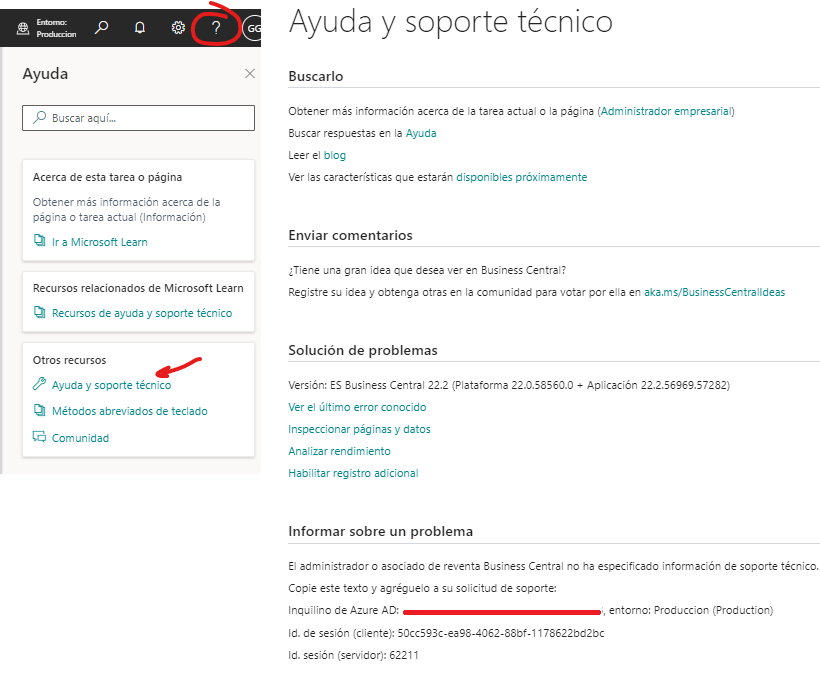
Donde el valor de «TENANT_ID» lo puedes obtener de la pantalla de «Ayuda y soporte técnico»
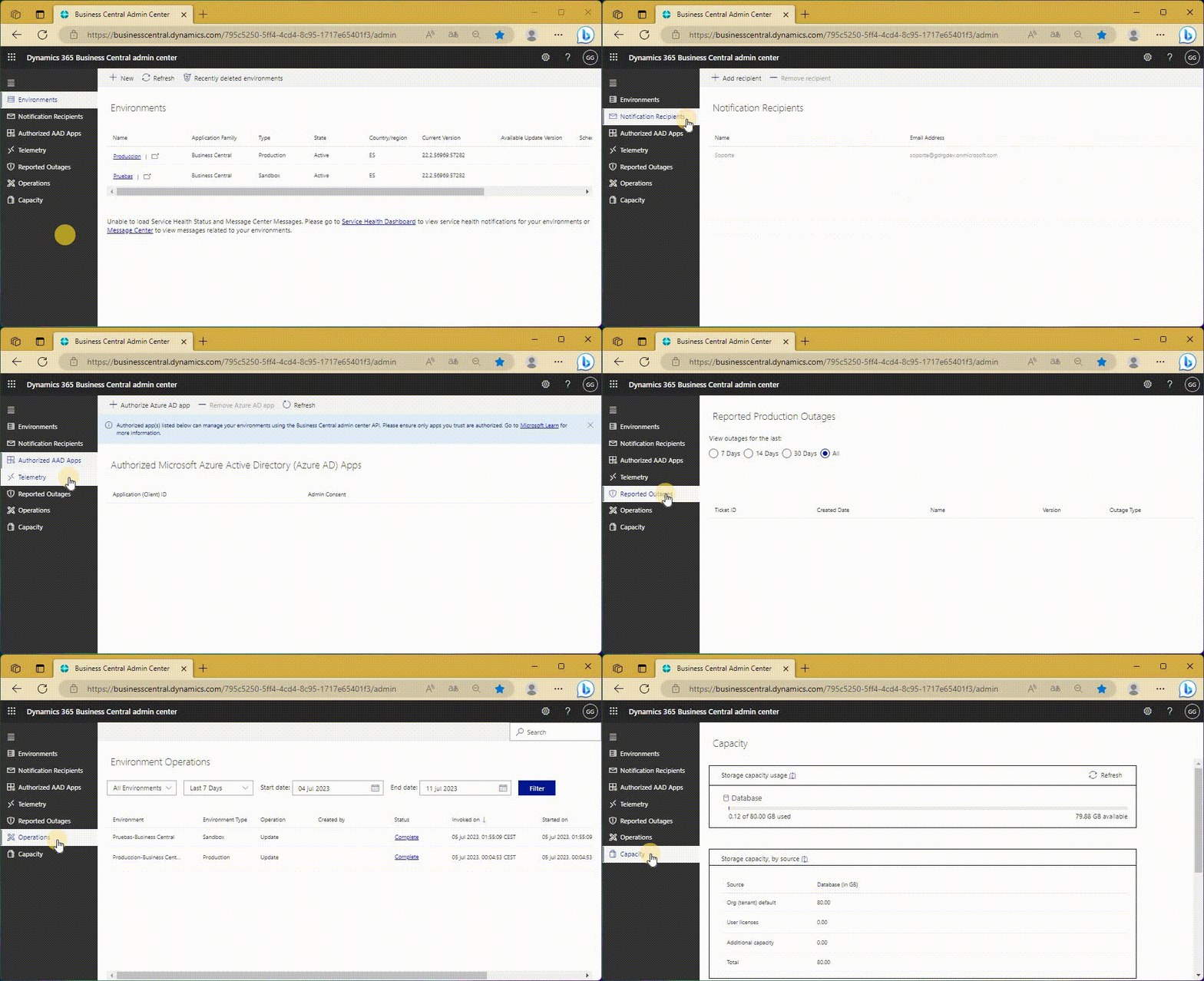
Esta pantalla nos ofrece múltiples pestañas cada una con opciones de configuración necesarias para administrar el tenant y sus respectivos ambientes, contamos con contactos de soporte, notificaciones, valores de telemetría, información de caídas de servicio, un registro de las operaciones que se realizan en cada amiente y el control de las capacidades de los ambientes.
Ambientes
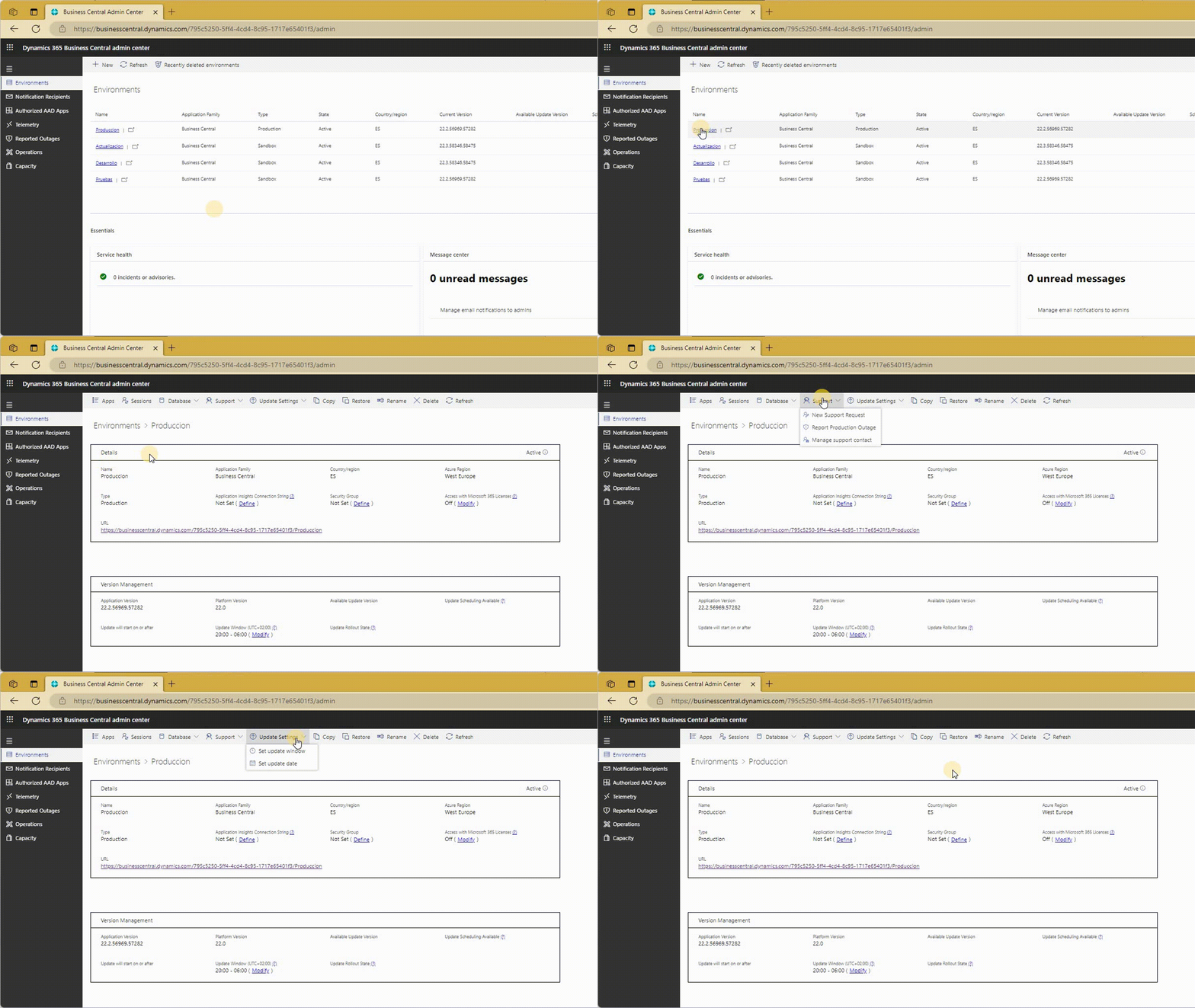
En este apartado denominado «Ambientes«, accedemos a los distintos ambientes del tenant.
Tipos y cantidad de ambientes
Los tipos de suscripción Premium y Essential brindan a cada cliente de Business Central un entorno de producción y tres entornos de espacio aislado sin cargo adicional.
Podemos:
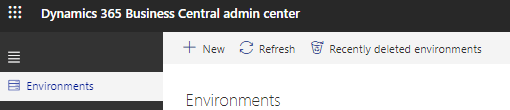
- Crear nuevos ambientes: Escribimos un nombre, el tipo de ambiente, seleccionamos el país y la versión.
- Acceder a ambientes recientemente borrados (Delete and recover environments – Business Central | Microsoft Learn) : Se listarán los ambientes que hemos borrado y podremos recuperarlos dentro de un plazo de 7 días.

Como información general del ambiente tenemos: nombre, país, región, tipo de ambiente, estado del mismo (en la imagen inferior indica Activo, aquí podrían aparecer estados de error en operaciones de una copia, restauración o actualización de ambiente), URL, versión de la aplicación y su plataforma, y la versión futura disponible.
En el caso de la actualizaciones, se completarían los datos de fecha y una ventana de horas en el cual se realizarán las actualizaciones.
Como datos opcionales tenemos la configuración de «Application Insights» (Enable Sending Telemetry to Application Insights – Business Central | Microsoft Learn), el grupo de seguridad y la habilitación de acceso de usuarios con licencia de MS 365. (Manage Access to Environment – Business Central | Microsoft Learn)

Podemos:

En la opción Aplicaciones, tenemos el listado de las distintas extensiones del estándar y también las que se instalen a través del AppSource (estas se actualizan manualmente de ser necesario).
Se visualizará la última versión disponible y la propuesta de acción de actualizarla o una indicación de instalar una extensión previamente.

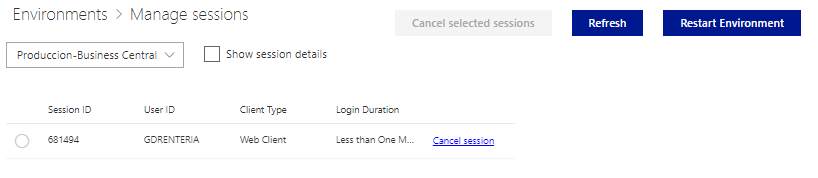
En la opción Sesiones se visualiza las sesiones activas en el ambiente, del tipo cliente web, background, móvil y otros. Se permite la cancelación individual y grupal de sesiones, además de una opción importante de reiniciar el ambiente. Managing Sessions in the Admin Center – Business Central | Microsoft Learn
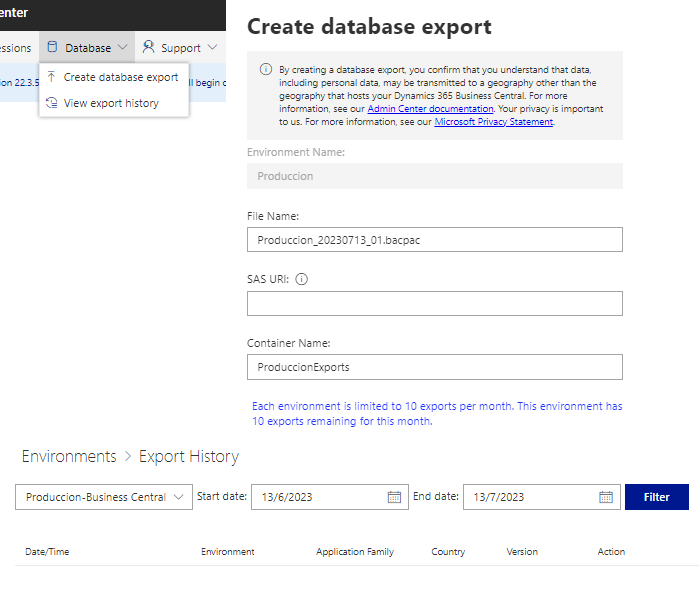
En la opción Base de datos, tenemos la opción de exportar una copia de seguridad bajo el formato de bacpac (como máximo 10 exportaciones al mes) para lo cual debemos contar con una cuenta de Azure Storage previamente. Exporting Databases in the Admin Center – Business Central | Microsoft Learn
De igual manera podemos ver en un listado el historial de estas operaciones.
En la opción de Soporte, se encuentra la opción de generar un requerimieno de nueva atención de soporte, si el problema es una interrupción del servicio de producción (únicamente), primero debemos agotar todas las vías posibles incluyendo un reinicio de ambiente, si aún no se habilita el ambiente, procedemos a crear un reporte de interrupción. Managing technical support – Business Central | Microsoft Learn
Y tenemos habilitada la opción de colocar el contacto de soporte de primera línea, que principalmente es el partner correspondiente.
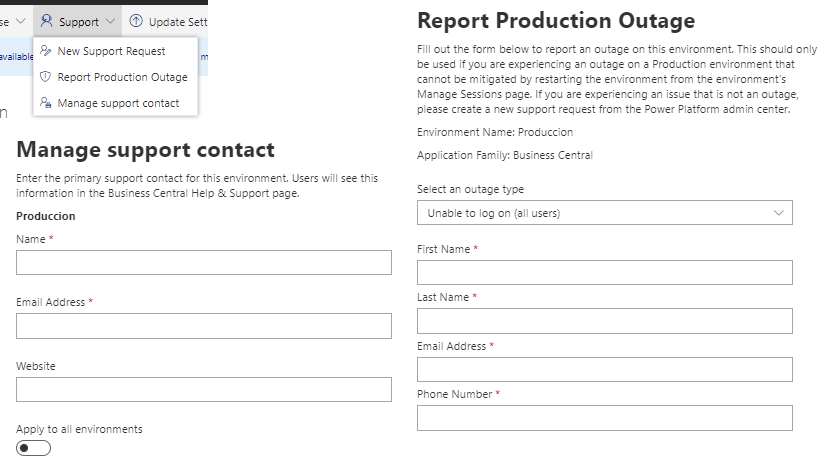
Estos reportes de interrupción de servicio, se visualizan en la opción de reportes de interrupción.

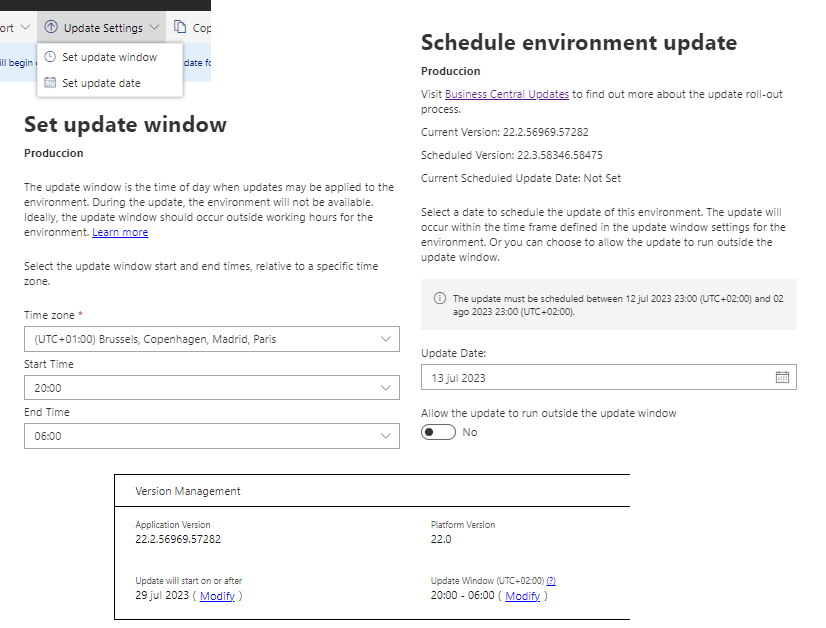
En la opción de Configuración de actualización (podemos acceder a estas opciones de igual manera desde la pantalla general del ambiente), nos encontramos con las opciones de configuración de una ventana de atención para las actualizaciones, y de contar con una versión disponible de actualización, la fecha correspondiente a la actualización. Managing Updates in the Admin Center – Business Central | Microsoft Learn
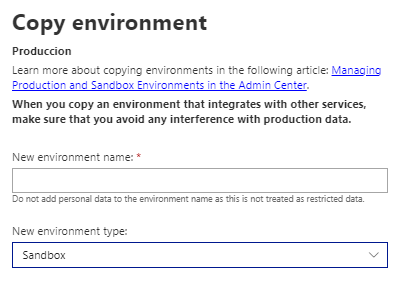
La opción de Copiar, permite copiar desde un ambiente cualquiera a otro. Siempre respetando la cantidad de ambientes de producción y sandbox. Hemos de colocar el nombre y el tipo de ambiente destino. Copy an environment – Business Central | Microsoft Learn
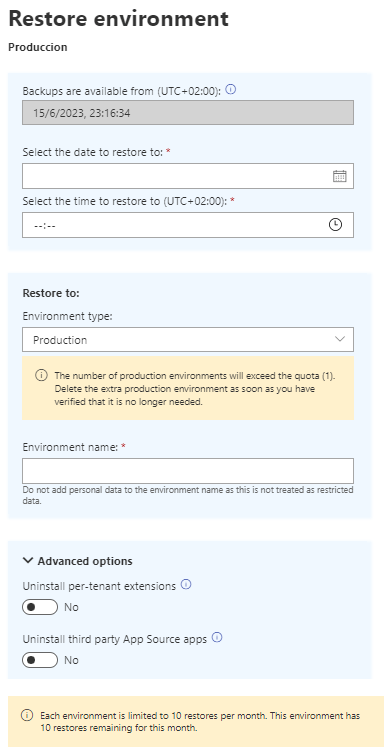
La opción de Restaurar, permite restaurar cualquier tipo de ambiente a una determinada fecha y hora (30 días antes), indicando el tipo de ambiente para restaurar y su nombre, además de configurar si deseas mantener extensiones propios o de terceros. (como máximo 10 restauraciones al mes) Restoring an Environment in the Admin Center – Business Central | Microsoft Learn
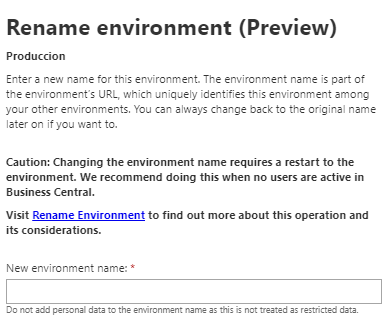
La opción de Renombrar, permite cambiar el nombre de un ambiente existente, tener en cuenta las consideraciones correspondientes de no hacerlo cuando esté en uso, o de entregar las nuevas URL de servicios web, si es que otros aplicativos vienen usándolas. Rename Environments in the Admin Center – Business Central | Microsoft Learn
La opción de Eliminar, permite borrar un ambiente, confirmando y aceptando dicha acción. Delete and recover environments – Business Central | Microsoft Learn

No está de más indicar que todas las actividades anteriormente mencionadas han de realizarse con sumo cuidado, atención y responsabilidad
Administration of Business Central (Part 1)
General
Attention: The following users are authorized to access the Business Central administration center:
- Internal tenant administrators
- Admin agent
- Helpdesk agent
The URL to enter the BC Administration area is the following: https://businesscentral.dynamics.com/»TENANT_ID»/admin
Where the value of «TENANT_ID» can be obtained from the «Help and technical support» screen
This screen offers us multiple tabs each with configuration options necessary to manage the tenant and their respective environments, we have support contacts, notifications, telemetry values, service outage information, a record of the operations carried out in each environment and the control of the capacities of the environments.
Environments
In this section «Environments», we access the different environments of the tenant.
Types and number of environments
Premium and Essential subscription types provide each Business Central customer with one production environment and three sandbox environments at no additional charge.
We can:
- Create new environments: We write a name, the type of environment, select the country and the version.
- Access recently deleted environments. (Delete and recover environments – Business Central | Microsoft Learn) The environments that we have deleted will be listed and we can recover them within a period of 7 days.
As general information about the environment we have: name, country, region, type of environment, its status (in the image below it indicates Active, here error states could appear in copy, restore or update operations of the environment), URL, version of the application and its platform, and the future version available.
In the case of updates, the date data and a window of hours in which the updates will be made would be completed.
As optional data we have the configuration of «Application Insights» (Enable Sending Telemetry to Application Insights – Business Central | Microsoft Learn), the security group and access enablement of MS 365 licensed users. (Manage Access to Environment – Business Central | Microsoft Learn)
We can:
In the Apps option, we have the list of the different extensions of the standard and also those that are installed through the AppSource (these are manually updated if necessary).
The latest version available will be displayed and the action proposal to update it or an indication to install an extension previously.
The Sessions option displays the active sessions in the environment, of the type web client, background, mobile and others. Individual and group cancellation of sessions is allowed, as well as an important option to restart the environment. Managing Sessions in the Admin Center – Business Central | Microsoft Learn
In the Database option, we have the option of exporting a backup under the bacpac format (maximum 10 exports per month) for which we must have an Azure Storage account previously. Exporting Databases in the Admin Center – Business Central | Microsoft Learn
In the same way we can see in a list the history of these operations.
In the Support option, there is the option to generate a request for new support attention, if the problem is an interruption of the production service (only), we must first exhaust all possible avenues including a restart of the environment, if not yet the environment is enabled, we proceed to report a production outage. Managing technical support – Business Central | Microsoft Learn
And we can full the first line support contact, which is mainly the corresponding partner.
These production outages reports are shown in their corresponding option within the admin center.
In the update settings option (we can access these options in the same way from the «Version Management» section of the environment), we find the configuration options for an attention window for updates, and if there is an update version available, the date corresponding to the update. Managing Updates in the Admin Center – Business Central | Microsoft Learn
The Copy option allows copying from any environment to another. Always respecting the number of production and sandbox environments. We have to full the name and type of destination environment. Copy an environment – Business Central | Microsoft Learn
The Restore option allows you to restore any type of environment to a certain date and time (30 days before), indicating the type of environment to restore and its name, in addition to configuring whether you want to keep your own or third-party extensions. (maximum 10 restorations per month). Restoring an Environment in the Admin Center – Business Central | Microsoft Learn
The Rename option allows you to change the name of an existing environment, take into account the corresponding considerations for not doing so when it is in use, and to deliver the new URLs of web services, if other applications are using them. Rename Environments in the Admin Center – Business Central | Microsoft Learn
The Delete option allows deleting an environment, confirming and accepting this action. Delete and recover environments – Business Central | Microsoft Learn
It is worth indicating that all the aforementioned activities must be carried out with the utmost care, attention and responsibility
Mas información:
- Business Central Admin Center – Business Central | Microsoft Learn
- Managing Production and Sandbox Environments – Business Central | Microsoft Learn
#environment #administration


 Gerardo Rentería Blog
Deja un comentario