
Change of partner and changes in the Business Central Admin Center (English version)
Cambio de partner y cambios en el Business Central Admin Center.
Si su empresa decide cambiar de partner, debe asegurarse de que se borren algunas configuraciones creadas por su partner actual en el centro de administración de Business Central. Tu o tu nuevo partner llenarán estos campos después de que comiences a trabajar con ellos.
Información de contacto del servicio de soporte:
- Seleccione el entorno relevante en el centro de administración de Business Central y luego seleccione en el menú Soporte la opción de Administrar contacto de soporte.
- Verifique si los datos en los campos Nombre, Dirección de correo electrónico y Sitio web aún son válidos; si no, elimine o modifique la información.

Destinatarios de las notificaciones:
- En el lado izquierdo del centro de administración de Business Central, seleccione Destinatarios de notificaciones.
- Verifique si la lista de direcciones de correo electrónico sigue siendo relevante; si no, elimine o modifique los valores.

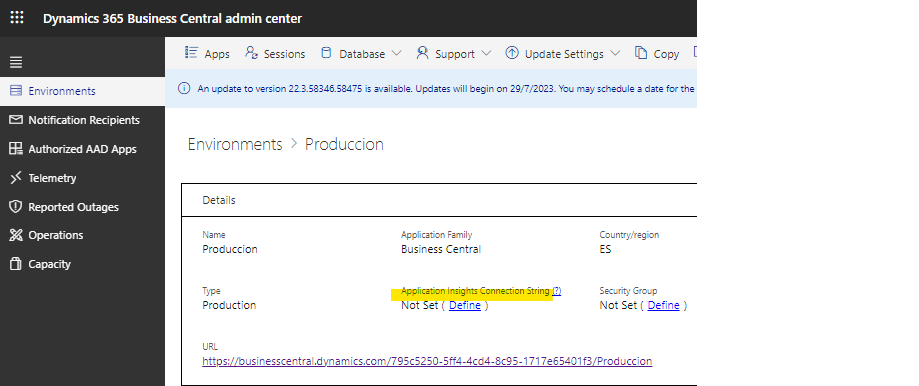
Clave de Application Insights (si está habilitada por el partner)
- Seleccione el entorno relevante en el centro de administración de Business Central y luego seleccione Cadena de conexión de Application Insights en el menú principal.
- Quite o cambie el valor de la cadena.
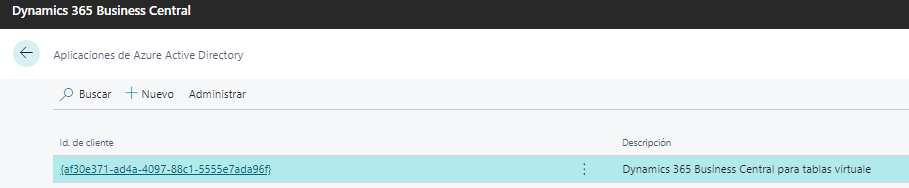
Aplicaciones autorizadas de Azure Active Directory (si las configura el partner)
- Vaya a «Aplicaciones de AAD permitidas» en el área de administración de Business Central y elimine las aplicaciones permitidas por el partner.
- Revocar el consentimiento otorgado a la aplicación AAD.
- Desde la página de aplicaciones de Azure Active Directory le permite deshabilitar cualquier aplicación que se haya configurado con derechos en Business Central.

Business Central Admin Center- Partner change considerations
If your company decides to change partners, you must ensure that some settings created by your current partner in your Business Central administrative center are erased. You or your new partner will fill up these fields after you start working with them.
Support contact details:
- Select the relevant environment in the Business Central administration center, and then select Manage Support Contact from the Support menu.
- Check to see if the data in the Name, Email address, and Website fields are still valid; if not, delete or modify them.
Recipients of notifications:
- On the left side of the Business Central administration center, select Notification recipients.
- Check to see if the list of email addresses is still relevant; if not, delete or modify them.
Application Insights Connection String (if enabled by the partner)
- Select the relevant environment in the Business Central administration center, and then select Application Insights Connection String from the main menu.
- Remove or modify this value.
Authorized Azure Active Directory Apps (if configured by a partner)
- Navigate to ‘Authorized AAD Apps’ in the Business Central Admin and remove any apps permitted by the partner.
- Revocate the consent granted to the partner’s AAD App.
- The Azure Active Directory Applications page in BC allows you to disable any apps that have been configured with rights in Business Central.
Más información:


 Gerardo Rentería Blog
Deja un comentario